How to Create a GitHub Action to build a container image

In this article, you’ll complete the following tasks: Create a GitHub Action to implement a build pipeline Modify the coupon service code to trigger the build workflow Monitor the build workflow’s progress in real time, Update a failing unit test to fix the build.

Create the build action

Create a GitHub Action for the build with the following steps:

  1. Select the Actions tab in your repository and select the set up a workflow yourself link: custom-github-workflow
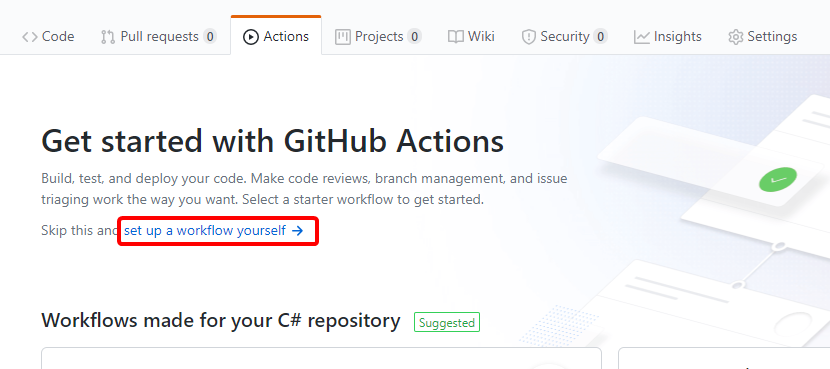
  2. Replace the YAML in the editor with the following YAML:
    name: eShop build
    
    on:
      push:
        paths:
        - 'src/Services/Coupon/**'
        - 'tests/Services/Coupon/**'
        branches: [ main ]
    
    jobs:
      build-and-push-docker-image:
        runs-on: ubuntu-latest
        steps:
        - name: Get code from the repository
          uses: actions/checkout@v1
          with:
            ref: main
    
        - name: Run unit tests
          run: dotnet test tests/Services/Coupon/*.Tests/*.csproj
          env:
            DOTNET_CLI_TELEMETRY_OPTOUT: true
            DOTNET_NOLOGO: true
    
        - name: Build and push Docker image
          uses: docker/build-push-action@v1.1.0
          with:
            username: ${{ secrets.REGISTRY_USERNAME }}
            password: ${{ secrets.REGISTRY_PASSWORD }}
            registry: ${{ secrets.REGISTRY_LOGIN_SERVER }}
            path: .
            dockerfile: './src/Services/Coupon/Coupon.API/Dockerfile.acr'
            repository: 'coupon.api'
            tags: 'linux-latest'
            push: true
    

    The preceding YAML defines a GitHub Action that:

    • Is triggered when a commit is pushed to the coupon service’s source code or unit tests in the main branch.
    • Defines step-specific environment variables. For example, the Run unit tests step defines DOTNET_CLI_TELEMETRY_OPTOUT and DOTNET_NOLOGO. With regards to the .NET Core CLI, those environment variables opt out of usage data collection and suppress the first-run telemetry message, respectively.
    • Has one job—a set of steps that execute on the same workflow runner—named build-and-push-docker-image. The job:
      • Executes the xUnit tests for the coupon service.
      • Builds the Docker image and pushes it to an ACR instance. ACR is a private container registry used for the modified coupon container image. You don’t have permission to modify the Microsoft-owned container registry from which the original image was retrieved.
      • Runs in an ubuntu-latest runner and has three steps, two of which use actions available from the GitHub Actions marketplace:
        • Get code from the repository uses the actions/checkout@v1 action to check out the main branch.
        • Build and push Docker image uses the docker/build-push-action@v1.1.0 action to build the container image and push it to ACR.

     Important

    Trigger conditions and other artifacts of GitHub Actions or workflows depend on the apps and environments. For ease of understanding, details are kept simple here. Both the build and the deploy workflows are scoped to coupon service changes because all the microservices are kept under a single repository. In an actual production scenario, each microservice is kept in a separate repository.

  3. Replace the default workflow file name of main.yml with build.yml:
  4. Select the Start commit button, select the Commit directly to the `main` branch radio button, and select Commit new file to save the workflow file.

Trigger a build

You’ve finished creating the build workflow for your CI/CD pipeline on Cloud Hosting. The Marketing department wants to start a campaign to better track discount code usage. With this feature, Marketing can better understand which discount codes are most effective in boosting sales. To support this feature, make the following changes in the main branch:

  1. Select the Code tab in your fork of the repository.
  2. Select the edit icon to open the src/Services/Coupon/Coupon.API/Controllers/CouponController.cs file in the editor:
  3. Replace the comment // Add LogInformation call with the following code:
    _logger.LogInformation("Applying coupon {CouponCode}", code);
    

    The preceding code logs the discount code being applied.

  4. Select the Commit directly to the `main` branch radio button and select the Commit changes button.The build workflow is triggered automatically.


Monitor the build

View the real-time progress of the build by completing the following steps:

  1. Select the Actions tab.
  2. Select the most recent workflow run listed for the eShop build workflow. The commit message used in the previous step becomes the run’s name.
  3. Select the build-and-push-docker-image task.
  4. Wait a few minutes. Notice that:
    • The build fails on the Run unit tests step.
    • The Build and push Docker image step doesn’t run because the previous step failed.


Fix the build

  1. From the Code tab, edit the tests/Services/Coupon/Coupon.API.Tests/Controllers/CouponControllerTests.cs file. In the CouponControllerTests.cs file, notice that Assert.True(false); causes the unit test to fail. Replace that line with the following code:
    Assert.True(true);
    

    The preceding code causes the test to always pass. This test is for illustrative purposes only. Real tests should test actual functionality.

  2. Commit and push this change to the main branch.The build workflow is triggered automatically.

When the build completes successfully, all steps are prefixed with a green check mark. Expand any task for the output generated during its execution. For example:


 Notes:

It’s possible to move the dotnet test command to the Dockerfile. In this example, you’re running dotnet test in the GitHub Action to:

  • Understand how to execute .NET Core CLI commands in GitHub Actions.
  • Understand how the failure of a step can prevent execution of the remaining build steps.

In this unit, you created a GitHub Action to build the coupon service. You added logging to the coupon service and saw how committing that code triggered the build workflow. Next, you fixed a failing unit test and triggered the build again. Finally, you learned how to monitor the build’s progress in real time.

ASP.NET Core Microservice – How to Configure GitHub Action permissions and secrets

In this unit, you’ll complete the following tasks:

  • Verify the app is deployed correctly
  • Set up permissions to deploy to ACR and AKS from GitHub
  • Create secrets to store sensitive data used by the GitHub Actions

Verify the deployment to AKS

After the app has deployed to AKS, you’ll see a variation of the following message in the command shell:

The eShop-Learn application has been deployed to "http://203.0.113.55" (IP: 203.0.113.55).

You can begin exploring these services (when ready):
- Centralized logging       : http://203.0.113.55/seq/#/events?autorefresh (See transient failures during startup)
- General application status: http://203.0.113.55/webstatus/ (See overall service status)
- Web SPA application       : http://203.0.113.55/

 Tip

To display these URLs again, run the following command:

cat ~/clouddrive/aspnet-learn-temp/deployment-urls.txt

Even though the app has been deployed, it might take a few minutes to come online. Verify that the app is deployed and online with the following steps:

  1. Select the General application status link in the command shell to view the WebStatus health checks dashboard. The resulting page displays the status of each microservice in the deployment. The page refreshes automatically, every 10 seconds.

     Note: While the app is starting up, you might initially receive an HTTP 503 or 502 response from the server. Retry after about one minute. The Seq logs, which are viewable at the Centralized logging URL, are available before the other endpoints.

  2. After all the services are healthy, select the Web SPA application link in the command shell to test the eShopOnContainers web app. The following page appears:
  3. Complete a purchase as follows:
    1. Select the LOGIN link in the upper right to sign into the app. The credentials are provided on the page.
    2. Add the .NET BLUE HOODIE to the shopping bag by selecting the image.
    3. Select the shopping bag icon in the upper right.
    4. Select the CHECKOUT button.
    5. Enter the code DISC-10 in the HAVE A DISCOUNT CODE? text box for a 10 USD discount, and select APPLY.
    6. Select PLACE ORDER to complete the purchase.

You’ve successfully verified that the app was deployed to AKS and is working properly. The discount code feature is supported by the coupon service. In this module, you’ll build a CI/CD pipeline to automate the build and deployment of the coupon service.

Set up permissions to deploy from GitHub

GitHub Actions will be used to publish the container image to ACR. To configure permissions so the GitHub Actions runner can connect to Azure, complete the following steps:

  1. Run the following command to create an Azure Active Directory service principal to allow access from GitHub:
    Azure CLI: 
    az ad sp create-for-rbac --sdk-auth --name http://eshop-learn-sp
    

    A variation of the following output appears:

    Creating a role assignment under the scope of "/subscriptions/<SUBSCRIPTION-ID>"
    {
      "clientId": "<CLIENT-ID>",
      "clientSecret": "<CLIENT-SECRET>",
      "subscriptionId": "<SUBSCRIPTION-ID>",
      "tenantId": "<TENANT-ID>",
      "activeDirectoryEndpointUrl": "https://login.microsoftonline.com",
      "resourceManagerEndpointUrl": "https://management.azure.com/",
      "activeDirectoryGraphResourceId": "https://graph.windows.net/",
      "sqlManagementEndpointUrl": "https://management.core.windows.net:8443/",
      "galleryEndpointUrl": "https://gallery.azure.com/",
      "managementEndpointUrl": "https://management.core.windows.net/"
    }
    
  2. Copy the JSON output from the command shell. Don’t include the text output above the JSON. You’ll need the JSON and the credentials for the GitHub Action in next step.

Create the secrets

The service principal and the credentials for the container registry are sensitive information. The GitHub Actions runner will need the credentials to interact with ACR and AKS. As a best practice, sensitive information should be stored as encrypted secrets in a secure location. The secrets should be managed by repository administrators and accessed by the GitHub Actions runner. Complete the following steps to securely store the sensitive information as environment variables in your repository:

  1. In the GitHub repository you forked, go to Settings > Secrets.
  2. Select the New secret button.
  3. Enter AZURE_CREDENTIALS and the JSON output you copied in the Name and Value text boxes, respectively.At this point, you should have something like this: 
  4. Select the Add secret button.
  5. Create four additional secrets. Run the following command to get the values for the new secrets:
    Bash:
    cat ~/clouddrive/aspnet-learn-temp/config.txt
    

    Name the secrets as follows and use the values provided in the text output:

    • IP_ADDRESS
    • REGISTRY_LOGIN_SERVER
    • REGISTRY_PASSWORD
    • REGISTRY_USERNAME

With all five secrets configured, you’ll see the following page:


In this unit, you verified the app was deployed correctly. You then created an Azure Active Directory service principal and stored related sensitive information as GitHub secrets.

Deploy a cloud-native ASP.NET Core microservice

Imagine you’re a software developer for an online retailer named eShopOnContainers. The retailer’s online storefront is a cloud-native, microservices-based ASP.NET Core app. To enhance the team’s agile development practices, you’ll implement a Continuous Integration and Continuous Deployment (CI/CD) pipeline. The pipeline has a series of automated tasks to compile, test, configure, and deploy from the build environment through all environments. You’ve decided to use GitHub Actions to fulfill the requirement. Because each microservice can be deployed independently, you’ve also decided to start with enabling CI/CD for a single service.

This module guides you through the process of implementing a CI/CD pipeline using GitHub Actions. You’ll begin with a simplified, revamped version of eShopOnContainers—the companion reference app for the guide .NET Microservices: Architecture for Containerized .NET Applications. This new reference app version includes a discount coupon feature that can be used at checkout time in the shopping basket. The feature is supported by an ASP.NET Core web API known as the coupon service. CI/CD will be enabled for the coupon service in this module.

You’ll use your own Azure subscription to deploy the resources in this module. To estimate the expected costs for these resources, see the preconfigured Azure Calculator estimate  of the resources that you’ll deploy. If you don’t have an Azure subscription, create a free account  before you begin.

Set up the environment

In this unit, you’ll use a script to deploy the existing eShopOnContainers app to Azure Kubernetes Service (AKS)

Launch Azure Cloud Shell

  1. Open the Azure Cloud Shell  in your browser.
  2. Select a directory with access to the Azure subscription in which you want to create resources.
  3. Select Bash from the environment drop-down in the upper left.

Run the deployment script

  1. In a new browser window, fork the repository github.com/MicrosoftDocs/mslearn-microservices-devops-aspnet-core to your own GitHub account. For instructions on forking, see Forking Projects.
  2. Run the following command in the command shell. When prompted for Repo URL, enter the URL of your fork created in the first step.

    Bash

    . <(wget -q -O - https://aka.ms/microservices-devops-aspnet-core-setup)
    

     Tip

    You can use the Copy button to copy commands to the clipboard. To paste, right-click on a new line in the Cloud Shell window and select Paste or use the Shift+Insert keyboard shortcut (⌘+V on macOS).

    The preceding command retrieves and runs a setup script from a GitHub repository. The script completes the following steps:

    • Installs the required version of the .NET Core SDK.
    • Clones the eShopOnContainers app from your fork of the GitHub repository.
    • Provisions AKS and Azure Container Registry (ACR) resources.
    • Launches the Cloud Shell editor to view the code.
    • Deploys the containers to AKS.
    • Displays connection information upon completion.

     Important

    The script installs the required version of the .NET Core SDK alongside the version pre-installed in Azure Cloud Shell. To revert to the default configuration in Cloud Shell, see the instructions in the Summary unit.

The script takes several minutes to complete. It deploys a modified version of the eShopOnContainers reference app. The solution architecture of the app is pictured in the following diagram:

eShopOnContainers solution architecture diagram

This module focuses on adding CI/CD for the coupon service depicted in the preceding diagram.

 Note: Non-blocking warnings are expected in the deployment process. If an unexpected exception occurs, you can reset any changes made by the script by running the following command:

cd ~ && \
  rm -rf ~/clouddrive/aspnet-learn && \
  az group delete --name eshop-learn-rg --yes