Web Development – How to create a release based workflow using GitHub.

Development teams around the world share one consistent goal: to release software. Whether it’s a major platform with annual releases or a web site that publishes multiple times per day, every workflow drives toward the same result.

Suppose you lead a team of software/web developers working on the next version of your product. As your team scales up, the challenges of keeping everything running smoothly become more and more difficult. Everything needs to focus on the upcoming release, and you need a workflow that fits the unpredictable nature of engineering. That workflow needs to provide a set of practical processes for managing work, code, and deliverables. The good news is that you’re already using GitHub, so there’s a light at the end of the tunnel.

In this post, you learn how to implement a release based workflow on GitHub using project boards, branches, and releases.

Here, we discuss how you can create a release based workflow using GitHub.

What is a release based workflow?

A release based workflow is a set of patterns and policies that focus on releasing software. While this notion may seem like an obvious goal for a development team, the value of this perspective is somewhat nuanced. This unit will discuss how it drives three different parts of the release cycle: managing the project, selecting a branching strategy, and releasing to customers.

Planning work with GitHub project boards

From a planning mindset, being release-centric means that issues are divided up into distinct iterations that produce a new version. These iterations are often called sprints and are time-boxed in roughly equal periods to produce incremental changes. Other teams prefer to package entire release versions into a single iteration that can last a few months or longer. In GitHub, these iterations are managed as projects.

The dominant feature of a project is its board. The board is the central plan of record for the iteration and contains all of the cards that are to be resolved. A card can represent an issue, a pull request, or even just a generic note.project board

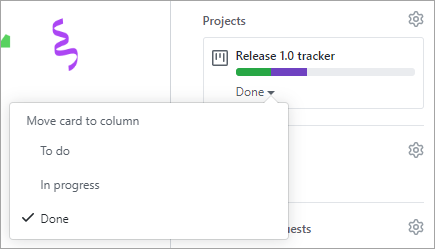
By default, each card starts in the To do column and moves to In progress after work begins before ending in Done. You may customize these columns, add additional columns, or apply automation to the movement of these cards and their properties to fit your team’s process.

Learn more about managing project boards .

The card’s project status is integrated across the repository. For example, dragging a card from To do to In progress changes its status, as well as updates the visual indicator next to the project’s title. The green section indicates the portion of cards marked as Done, whereas purple is used for cards In progress. The remaining space represents the quantity of cards that have yet to begin. In addition to dragging cards around the board, you may update them from their main view.move project card
By using a project board, all stakeholders have an easy way to understand the status and velocity of a project. You can also create boards that are scoped to individual users or a collection of repositories owned by an organization.

Learn more about tracking the progress of your work with project boards .


Tracking specific milestones

For teams, or possibly subsets of teams, GitHub offers milestone tracking.
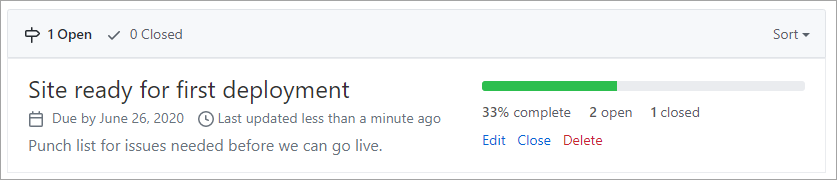
milestones

Milestones are similar to project tracking in that there is an emphasis on the prioritized completion of issues and pull requests. However, where a project may be focused on the team’s process, a milestone is focused on the product.

Learn more about tracking the progress of your work with milestones .

Selecting a branching strategy

Repositories that have multiple developers working in parallel need a well-defined branching strategy. Settling on a unified approach early in the project will save confusion and frustration as the team and codebase scale.

Learn about how we use Git at Microsoft .

The GitHub flow

In addition to providing a platform for collaborative software development, GitHub also offers a prescribed workflow designed to optimize use of its various features. While GitHub can work with virtually any software development process, it’s recommended that you consider the GitHub flow if your team has not yet settled on a process.

Working with long-lived branches

A long-lived branch is a Git branch that is never deleted. Some teams prefer to avoid them altogether in favor of short-lived feature and bug fix branches. For those teams, the goal of any effort is to produce a pull request that merges their work back into master. This approach can be effective for projects that never have the need to look back, such as first-party web applications that will never support a previous version.

However, there are certain scenarios where a long-lived branch serves the best interests of a team. The most common case for a long-lived branch is when a product has multiple versions that must be supported for an extended period of time. When a team needs to plan for this commitment, the repository should follow a standard convention, such as release-v1.0, release-v2.0, and so on. Those branches should also be marked as protected in GitHub so that write access is controlled and they cannot be accidentally deleted.

Teams should still maintain master as the root branch and merge their release branch changes upstream as long as they fit into the future of the project. When the time comes, release-v3.0 should base off of master so that servicing work for release-v2.0 doesn’t complicate the repository.

Servicing long-lived branches

Suppose a bug fix were merged into the release-v2.0 branch, and then merged again upstream into master. It was then later discovered that this bug also existed in the release-v1.0 branch and needed to be backported for customers still using that version. What’s the best way to do this?


Merging master down into release-v1.0 would not be a feasible option since it would contain a significant number of commits that were not intended to be part of that version. For the same reason, rebasing release-v1.0 onto the current master commit would not be an option.

An alternative option would be to manually reimplement the fix on the release-v1.0 branch, but that approach would require much rework and not scale well across multiple versions. However, Git does offer an automated solution to this problem in the form of its cherry-pick command.

What is Git’s cherry-pick command?

git cherry-pick is a command that enables you to apply specific commits from one branch to another. It simply iterates the selected commits and applies them to the target branch as new commits. If necessary, developers can merge any conflicts before completing the backport.

Learn more about Git’s cherry-pick .

Releasing to consumers

When a product version is ready to be released, GitHub simplifies the process of packaging it up and notifying consumers.


Creating a version is as straightforward as filling out the form:

  • Enter a Git tag to apply, which should follow semantic versioning , such as v1.0.2. GitHub manages the process of creating the Git tag you specify.
  • Enter a name for your release. Some common practices are to:
    • Use a descriptive name.
    • Use the Git version.
    • Use a concise summary of how this release has changed since the previous one.
    • Use a code name or random phrase.
  • Provide release notes. This can be automated with the Release Drafter app , which analyzes the changes since the previous version and includes the associated pull request titles.
  • If you would like to provide files as part of the release, such as pre-built installers, you can drag and drop them onto the form. You don’t need to package the source as GitHub handles that for you automatically.
  • Indicate whether this is a pre-release version by checking that box. This will help customers avoid pre-release versions if they want to.
What is GitHub Pages?

GitHub Pages are free static websites hosted directly from your GitHub repository. Using standard technologies like YAML and Markdown, anyone can build and maintain a site in minutes.

Suppose you want to set up a basic web site to share information about the project you’re working on. It might be a personal site, like as resume or portfolio. Or it might be a professional site, like a user guide or developer reference. With GitHub Pages, you can spin the site up in minutes and enable anyone with a basic understanding of Markdown to contribute to it. You also get all the benefits of GitHub for source control, including branches and pull requests.

In this module, you learn how to set up and use GitHub Pages to host both personal and professional websites.

Learning objectives

In this module, you will:

  • Enable GitHub Pages
  • Choose a theme with Jekyll
  • Use YAML front matter
  • Customize your site
  • Create and edit blog posts

Prerequisites

  • A GitHub account
  • The ability to navigate and edit files in GitHub


What is GitHub Pages?

Here, we discuss the process of creating and maintaining a GitHub Pages web site.

GitHub Pages are static sites hosted directly from your GitHub repository. But they’re more than just a collection of static files. By making use of site generation technologies like Jekyll and Liquid, developers define dynamic templates that are processed into complete static web sites. Every time a change is committed to the source branch associated with the site, it is re-generated using the latest updates and automatically published to the target URL.

Learn more about Publishing sources for GitHub Pages sites


How to enabling GitHub Pages

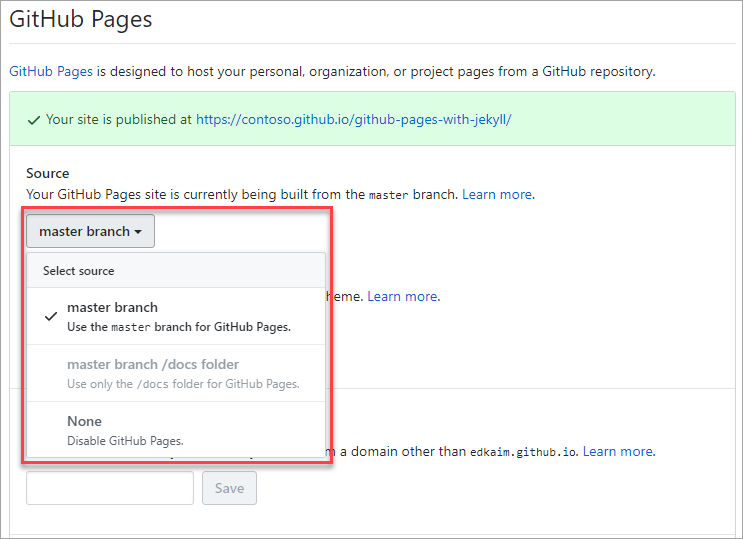
The first step in using GitHub Pages is to enable it from your repository’s Settings tab. You can opt to use the master branch, or specify the docs folder within it. If you ever want to disable GitHub Pages, you can do so here.

enabling-github-pages

Choosing a theme with Jekyll

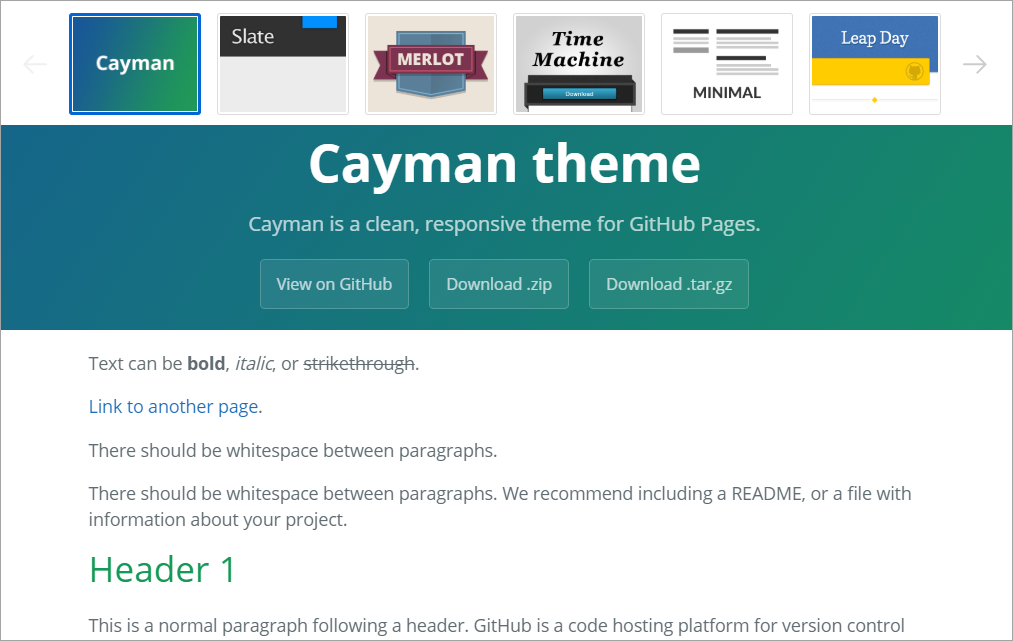
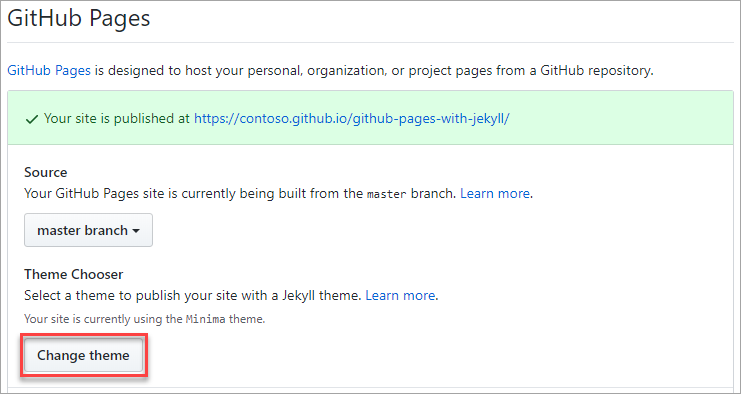
Jekyll is the static site generator used by GitHub to build your website from the contents of your repository. In addition to providing great content convenience, it also conforms to a standard design convention. This style standardization allows for swappable themes, which you can select from the GitHub Pages configuration.

choosing-jekyll-theme

There are a variety of themes provided by GitHub. There is also an array of commercial and open source themes available from the Jekyll community.

jekyll-themes

Learn more about Jekyll Themes .

Using YAML front matter

The term front matter refers to YAML metadata that prepends the content of a file. For Jekyll, this includes generator instructions to indicate the layout style of a Markdown page (post, page, and so on). It may also include page metadata, such as the document title, or page content variables, such as a blog post’s author.

Below is a simple example that would use the post layout. This assumes there is a _layouts/post.html file that defines the container HTML. Other layout options may be offered by adding their respective HTML files in the _layouts folder.

Learn more about Front Matter .

Customizing your site

Once your site is up and running, you can customize details about your site via _config.yml. This file includes virtually all site-wide configuration options, including site metadata, navigation menus, theme colors, compiler options, and more.

Learn more about _config.yml Configuration .

Creating and editing content

Creating and editing pages on your site follows the standard GitHub experience. The files you use for your GitHub Pages web site enjoy all of the same benefits as other files in your GitHub repository, so you can edit them with any tool, create and merge branches, and link with issues or pull requests.

In addition to Markdown and HTML, Jekyll supports the Liquid template language syntax. Liquid provides the ability for users to dynamically insert variables and basic logic flow constructs into their content files. When compiled, the final product is standard HTML.

The example below shows a combination of for looping and variable insertion.

<ul>
  {% for post in site.posts %}
    <li>
      <h2><a href="{{ post.url }}">{{ post.title }}</a></h2>
      {{ post.excerpt }}
    </li>
  {% endfor %}
</ul>

Learn more about Liquid template language .

Working with blog posts

Despite not having a database to work with, Jekyll still supports the concept of blogging using a specific convention: _posts/2020-06-25-blog-post-name.md. As you can likely infer, all blog posts are stored in the _posts folder and use the date and name convention as shown. During compilation, Jekyll processes the files in this folder to produce a list of HTML blog posts.

The example below illustrates the structure of a simple blog post –  best web hosting. It includes metadata for subtitle, tags, and comments, which may or may not be supported by the theme you choose.

thank you for taking the time to read this “GitHub Pages” article.

Beaver Builder Review: Is Beaver Builder Better Than Elementor OR Divi?

Are you planning to build a wordpress website with a Beaver Builder? Then you’re in the right place. The use of a page builder when creating a website has increased enormously lately. You can build a well-converting fast website much more effectively and quickly with a page builder.

At the moment there are so many (good) page builders that you almost don’t know which one to choose and what to look out for. The speed of website is very important, but also the code of a page builder and search engine friendliness. I have therefore decided to write a Beaver Builder Review to help you choose the best page builder.

What is Beaver Builder?

Beaver Builder is one of the largest and best known page builders for WordPress. The advantage of such a page builder is that you can easily add or remove parts from your website, due to the drag and drop system. The literal translation of drag and drop is drag and drop and that’s how Beaver Builder really works. When you want to add a certain element on your website, all you have to do is drag it to where you want it. Then you get a menu with different options. Drag and drop page builders have become increasingly popular lately, because you can quickly and easily assemble a website without the need for knowledge of code!

What you often see is that a page builder is separate from the theme. This means that you have to choose a theme yourself. Often, a free theme is used that is poorly maintained, not fast, offers many features that you don’t need, and also don’t include support. The danger of this is firstly you don’t have the full freedom with your page builder and secondly, these free templates are not optimized for Google. You will therefore find that you are not going to be found bad or at all in Google. And that’s where Beaver Builder makes the difference!

Beaver Builder is not only a page builder, but continues. In this way they have their own theme, which is kept as clean as possible. This means that your website contains clean code, it is faster, is well maintained and it is also search engine friendly. Then you can use the page builder to build a website yourself or use the hundreds of pre-built templates. Because the templates are well optimized, you will be able to set up a successful website thanks to these themes.

What makes beaver builder so special?

Now that you know a little bit what Beaver Builder is, it’s time to look further a little. It’s time to see why Beaver Builder might be the best page builder for you. Of course, not every product only has advantages and that’s why we highlight them for a while. What we can say is that the disadvantages are really minuscule.
Very easy to use

This is by far the biggest advantage of Beaver Builder, namely how easy you can work with Beaver Builder. Installing the plugin is easy to do, obviously after buying the page builder. Then it’s immediately clear how you can set up your website with Beaver Builder and customize things.

And nee Beaver Builder is not only simple for the experienced website builders, but also for the real beginners. With many page builders it is the case that beginners have difficulty finding the right way, but at Beaver Builder you immediately know what to do and where to find something.

Beaver Builder is particularly easy to use by the live editor. This will instantly tell you what a particular change does to your website. If the change looks good, click save and the change has been made on the website. But if you are not satisfied with a change, you cancel it and there is nothing going on and it is not transferred to the website.

I can honestly tell you it’s a pleasure to work with Beaver Builder! Should you want to test Beaver Builder? Then you can try the demo here!

Light & Fast

When a theme is easy to use, it often means that the theme is very fast. And that’s certainly the case with Beaver Builder. Having a fast website hosting is not only important to yourself, but also has a big influence on the discoverability of your website in Google and the time a visitor spends on your website.

Beaver Builder is built by experienced programmers who have a lot of knowledge of code. Therefore, the code is very clean and easy to read for search engines. This ensures that Google understands your website earlier and better, which will make for a better position in Google. Beaver Builder can keep the code very clean because they work with Bootstrap.

Bootstrap is a framework for programming languages such as HTML, CSS and JavaScript. By using Bootstrap you get access to a number of useful features and additional possibilities. One of these additional functionalities is to build a responsive website faster and easier. Another advantage of Beaver Builder is that you can also easily add and/or delete things on the website.

Finally and perhaps most importantly, the user-friendliness of Bootstrap. Because Bootstrap is so user-friendly, the programmers can build relatively fast, 100% responsive and a customer-friendly page builder with this tool. Beaver Builder knows exactly when to use which tool best!

Fully customizable

Nothing is as irritating as a wordpress theme where you don’t have all the freedom. I myself have had to deal with this on a regular basis. You’re about to put your website live, but you still want to change one thing. Find this option in the menu and it’s not in between. Because I’ve had regular it’s an important option for my website, I was able to start building all over again. And I can tell you, this isn’t going to make you happy and it’s going to take a huge amount of time to start all over again.

Often these kinds of problems arise because a theme is not created for a page builder. This means that with a page builder you don’t get the complete freedom to customize everything. So it is very important that you take a good look at whether the theme is suitable for a page builder. I’m sure I did some research for you to help you. There are a number of themes that are fast, user-friendly, clean and fully customizable. First, of course, you have the theme of Beaver Builder itself, but there are also a few other options. You can also use the Astra Theme, Ocean WP or GeneratePress. These are currently two of the best and most used wordpress themes in combination with a page builder.

Once you’ve chosen a theme that’s meant for a page builder, you can start. You now have multiple options to start building your website. This way you can start from scratch. This means that you get a white page and can set up your entire website yourself. This way you can decide for yourself what kind of website you want. The second option is to use the templates that Beaver Builder has delivered. You get access to 12 main page designs and 11 inside page designs (about our page, contact page, services page and portfolio). These templates can also be adapted to your own wishes.

If the templates that Beaver Builder offers are just not quite your thing, but you also don’t want to start from scratch. Then I advise you to use the Astra theme. The Astra theme is basically free, giving you access to a number of additional templates that can be fully customized with Beaver Builder. If you also choose to buy Astra Pro, you will have access to even more templates and options, but that is basically not necessary, because you already have Beaver Builder Pro.

Beaver Builder 100% responsive

At a time when more and more people are using their mobile to use the internet, it is extremely important that your website is created for this purpose. We still regularly see websites or wordpress themes that are not responsive. It is important that your website is responsive during this time, because it scales on the size of the screen. This makes your website or phone, tablet and desktop easy for everyone to read.

If your website is not responsive you will score badly, but then really bad in Google. Also, you won’t get many customers from your website, because they can’t access the information quickly and your website looks less reliable as a result.


Because Beaver Builder is made in Bootstrap, they can easily ensure that all their templates and elements are responsive. This also means that when you place elements in your website, they are also directly responsive. If you want to do something different on the phone, tablet, you can adjust the layout for a particular device with the settings.

Beaver Builder is good for SEO

You probably plan to build a website to get more customers, generate more sales or provide information. To achieve these goals, it is important that your website is found as high as possible in Google, by the people who search for your products, services or information. However, there are a number of things that are hugely important to be found well in the search engines and thus optimize your conversions.

First, the beaver builder themes are very fast. This is one of the ranking factors that has a big influence on the findability of your website. The speed of a website goes along with the “clean code”. The cleaner and less code a theme contains, the faster and better Google can read your page. This too will have a huge impact on the discoverability of your website.

Beaver Builder is good for search engine optimization, because they use Bootstrap, which I just mentioned for a while. This makes the pages extremely fast, easy to use and easy for Google to read them. To make the pages even faster, the code of each page is compressed, making pages even smaller and allowing Google to read and include them even better in their results.

Once you’re found in Google, of course, you also want as many people as possible to click on your website. That’s why beaver builder also gives you the option to schema.org. These are additional additions to your result in Google, which give your visitor more information and stand out. You must have seen those yellow stars in Google or the preparation time for a recipe. These are examples of Schema and often lead to many more clicks to your website.

Beaver Builder landing pages

When your website is well found in Google, you naturally want the visitor to come to a good page and buy your product. To achieve this, landing pages are ideal. A landing page is a page where the visitor ends up after clicking on your search result or advertisement. Each landing page must have one purpose, so that the visitor understands what to do on this page. Often you see that the goal is to buy a product, request a service or fill out a form.


Because these pages are so important and effective, it’s good to know that you can create them easily and quickly with Beaver Builder. Beaver Builder offers a variety of landing page templates that are optimized for requesting services, buying a product, or filling out a form. But of course you don’t have to use these templates. You can also choose to build your own landing pages. However, it is useful to look at how a landing page works, to get as many leads from your landing page as possible!

What does Beaver Builder cost

Of course, the price of Beaver Builder is also not entirely insignificant. We all want the best possible result for as little money as possible. Unfortunately, this is not going to work, because something good always costs money. This also applies to Beaver Builder.

At the moment, Beaver Builder offers three different packages. The cheapest package is the “Standard Package” and costs $99 dollars. For this money you can use Beaver Builder for an unlimited number of websites, you get the page builder, 1 year support, premium modules and templates. The only thing you don’t get with this package is the Beaver Builder Theme and multisite capable.

Beaver Builder’s second package is the “Pro Package” and this package costs $199 dollars. With this package you get exactly the same as the cheapest package. Furthermore, this package gives you access to the Beaver Builder theme and Multisite Capable. If you want to create a website for yourself, this is the best choice.

The last and most expensive package from Beaver Builder is the “Agency Package” and this package costs $399 dollars. As the name implies, this package is intended for companies that want to create websites for customers with Beaver Builder. This way you get exactly the same as with the “Pro Package”. Only with this package you can also use the White labeling. This allows you to change the templates.

When you want to create your own website, the “Pro Package” is the best choice. Want to use Beaver Builder to build websites for your customers? Then of course it is the “Beaver Builder Agency Package” the most suitable.

Conclusion Beaver Builder Review

Now it’s time to give my conclusion about the Beaver Builder page builder. I can certainly tell you that Beaver Builder is definitely one of the best, fastest and most comprehensive page builders of the moment. And that’s definitely a plus.

Secondly, Beaver Builder has a hugely clear drag and drop system that allows anyone to create a website with this page builder. Even the people who have never created a website can do this quickly and easily with Beaver Builder.

So far Beaver Builder has only advantages and it remains positive, because it is just a good page builder! Nevertheless, I have found something i would have preferred to see differently. It is about the choice of package and the price of this.

When you want to work with Beaver Builder you have the choice of three different packages. Which is pretty normal, because so do other page builders. Only you pay with the other page builders per license. So the number of websites you want to create with it. This means that you have to pay for every website you want to build, but you do have access to all the features of the page builder. This is not the case with Beaver Builder. At Beaver Builder, you can build as many websites as you want, but the package choice determines the freedom you have. Personally, I find this less, because you are actually told buy the most expensive package but if you want everything.

Should this not be a problem for you and do you have access to all the possibilities you need? Then Beaver Builder is the perfect page builder for you!