What is Azure Marketplace?

Azure Marketplace helps connect users with Microsoft partners, independent software vendors, and startups that are offering their solutions and services, which are optimized to run on Azure. Azure Marketplace customers can find, try, purchase, and provision applications and services from hundreds of leading service providers. All solutions and services are certified to run on Azure.


The solution catalog spans several industry categories such as open-source container platforms, virtual machine images, databases, application build and deployment software, developer tools, threat detection, and blockchain. Using Azure Marketplace, you can provision end-to-end solutions quickly and reliably, hosted in your own Azure environment. At the time of writing, there are more than 8,000 listings.

Azure Marketplace is designed for IT pros and cloud developers interested in commercial and IT software. Microsoft partners also use it as a launch point for all joint go-to-market activities.

How to create a pull request on GitHub

You’ve learned how to create a pull request when there’s guidance – either in a pull request template, or in a CONTRIBUTING file. But what if a project doesn’t (yet) offer that guidance and documentation on conventions?

Describe your changes

A best practice writing a commit message, and subsequently your pull request, is the following:

Your Git commit message subject line should complete the following sentence: If applied, this commit <will your subject line here>. It contains a succinct description of the change using the imperative, present tense: “add” not “added” nor “adds”. Limit your subject line to 50 characters, start with a capital letter, and don’t end with a period (.). You can use emoji in your subject line, and @-mention other GitHub users, although not everyone is a fan of such frivolity.

For the body of your message and pull request, continue to use present tense, and make sure to include the motivation for the change. Contrast this with the previous behavior. Use the real estate at your disposal to explain the what and why vs. the how.

Your commit message is only as to the point as the content that you’re about to submit. Commit / submit for review small, isolated sets of changes. This also increases the likelihood of your changes getting merged into the project.


Adding granularity

Before you submit your pull request, check the sidebar for ways to complete your PR. Select Reviewers and/or Assignees if you’re familiar with the project’s team structure. Add Labels when there’s guidance on using those in for instance the CONTRIBUTING.md file. You can use labels as a visual clue as to what you’re trying to accomplish. A maintainer may also add a label (or: multiple labels). Some of the labels we use in the repository for this Learn module for instance are:

  • (red colored label) bug: something isn’t working
  • (blue) documentation: improvements or additions to documentation
  • (grey) duplicate: this issue or pull request already exists
  • (teal) enhancement: new feature or request

Optionally you can link issues in the sidebar as well, where successfully merging a pull request may close the corresponding issue. And you can customize your subscription to notifications on the thread – some PRs receive a lot of comments, reviews, and CI/CD related notifications. You can choose between:

  • Not subscribed, and only receive notifications when you have participated or have been @mentioned.
  • Subscribed, and receive all notifications for this pull request.
  • Custom, and only be notified for the events you select

Exercise

Using the First Contributions  project practice forking, cloning, and ultimately submitting a pull request. The First Contributions project aims to “guide the way beginners make their first contribution”, and has guides for both using the command line, as well as several GUIs (Graphical User Interfaces). The project also has support for several languages, make sure to check their Translations folder.

With the lessons from the previous module and the above in mind, now go back to a pull request you opened recently (or: navigate to the pull requests tab of a project you’re watching), and find out how a good subject line can make all the difference. Consider updating a pull request accordingly. Put roughly as much time in writing your PR as you did making the change to the project, so to help the maintainer(s) to triage (categorize and prioritize) community contributions.

Bonus: check Microsoft’s Accessibility Guidelines and Requirements, and in particular the bit about “describing interactions with UI”, to avoid ableist language in your Docs contributions. Customers interact with products using different input methods: keyboard, mouse, touch, voice, and more. You will want to use generic verbs that work with any input method, for instance “select” instead of the input-specific “click” or “swipe”.
Set up a Azure development environment – Eclipse & IntelliJ IDEA

In this module, we prepared our development environment for creating apps in Azure. we installed the appropriate IDE for your operating system and development requirements, and we added Azure integration to streamline the publishing of content directly to Azure services.


Here you’ll install Eclipse and the Azure Toolkit on your development machine. By the end of the exercise, you’ll have everything you need to create a Java application connected to Azure.

Install Eclipse IDE

  1. Download the appropriate Eclipse IDE for your operating system.
  2. Start the Eclipse installer once downloaded.
    • On Windows, double-click the downloaded file.
    • On macOS and Linux, unzip the installer from the downloaded file and run it.

     Note

    The installer may prompt you to install the Java Development Kit, if it is missing.

  3. Select the packages to install. For Java developers, choose either the Java or Java EE Eclipse IDE option.
  4. Select the installation destination on your machine.
  5. Launch Eclipse to validate that it installed correctly.

Install Azure Toolkit for Eclipse

Installing the Azure Toolkit is the same across Windows, macOS, and Linux.

  1. Start Eclipse and open a workspace.
  2. Drag the following button to your running Eclipse workspace to install the Azure Toolkit for Eclipse plugin.
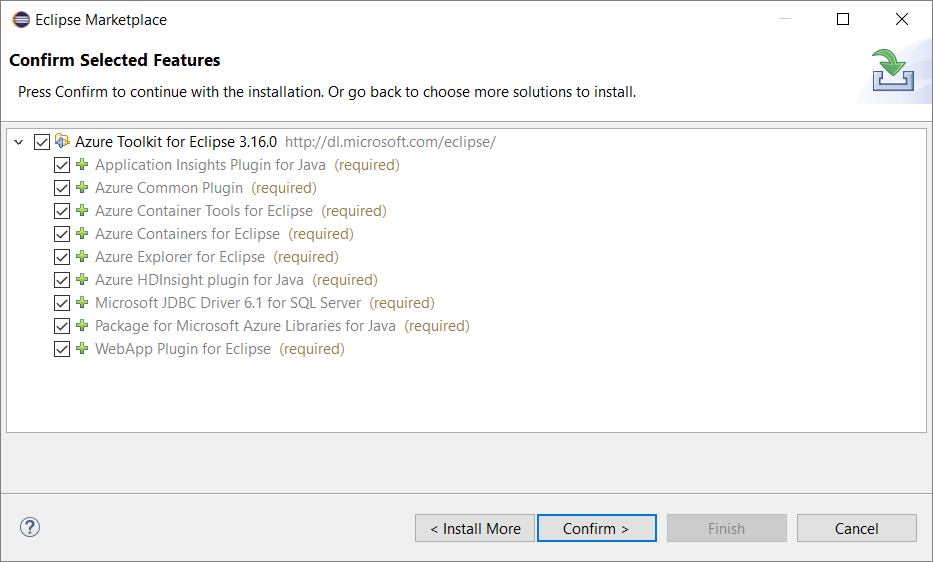
  3. The feature confirm dialog will open. Currently we have no optional feature, click Confirm to continue.eclipse-confirm-feature
  4. Review and accept the license agreements, and click Finish.
  5. Eclipse will download and install the Azure Toolkit.
  6. Restart Eclipse if necessary.
  7. Validate the Azure Toolkit installation by verifying that you can find a Tools > Azure menu option in Eclipse.


Here you’ll install IntelliJ IDEA and the Azure Toolkit on your development machine. By the end of the exercise, you’ll have everything you need to create a Java application connected to Azure.

Install IntelliJ IDEA

  1. Download the appropriate IntelliJ IDEA for your operating system.
  2. Start the IntelliJ IDEA installer once downloaded.
    • On Windows, double-click the downloaded file.
    • On macOS and Linux, unzip the installer from the downloaded file and run it.

     Note

    The installer may prompt you to install the Java Development Kit, if it is missing.

  3. Select the installation destination on your machine and confirm other settings.
  4. Launch IntelliJ IDEA to validate that it installed correctly.


Install Azure Toolkit for IntelliJ

Installing the Azure Toolkit is the same across Windows, macOS, and Linux.

  1. Start IntelliJ IDEA and open a workspace.
  2. Go to Configure > Settings.
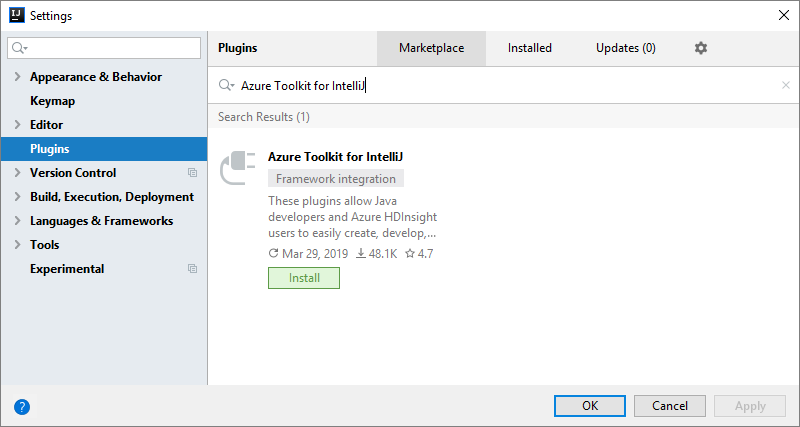
  3. The Settings dialog will open. Select Plugins on the left, search Azure Toolkit for IntelliJ in plugin marketplace.The following screenshot shows the Plugins dialog as described above.intellij 
  4. Click OK, and Install.
  5. Review and accept the license agreements if prompted.
  6. IntelliJ IDEA will download and install the Azure Toolkit.
  7. Restart IntelliJ IDEA after the installation.
  8. Validate the Azure Toolkit installation by verifying that you can see a Tools > Azure menu option in IntelliJ IDEA.