Unfortunately, it has been a bit quiet here lately because I simply didn’t have the time for new contributions. When it comes to WordPress Block Patterns, my fingers itches because I see them as a potential game changer for Gutenberg. With WordPress 5.5 the new block patterns will finally be available and hopefully soon they will be able to use their full potential.
What are WordPress Block Patterns?
Block patterns are layout templates that can be inserted into the WordPress editor with one click. The block patterns simply consist of a defined list or collection of blocks. The blocks are already provided with sample content such as texts and images and can be used as a starting point and adapted. The advantage: Instead of having to laboriously build up a page layout with several sections block by block, there are now ready-made modules.
For starters, WordPress Core will provide some block patterns. In the German translation these are probably called block templates. Themes and plugins can also register block patterns. I assume that the range of available block templates will increase very quickly after the release of version 5.5 on August 11th.
Once inserted, the blocks from the pattern behave like normal blocks. This means that they can be changed, added to or deleted without being dependent on the original pattern. Even if the pattern is removed, the blocks are retained.
Use WordPress Block Patterns
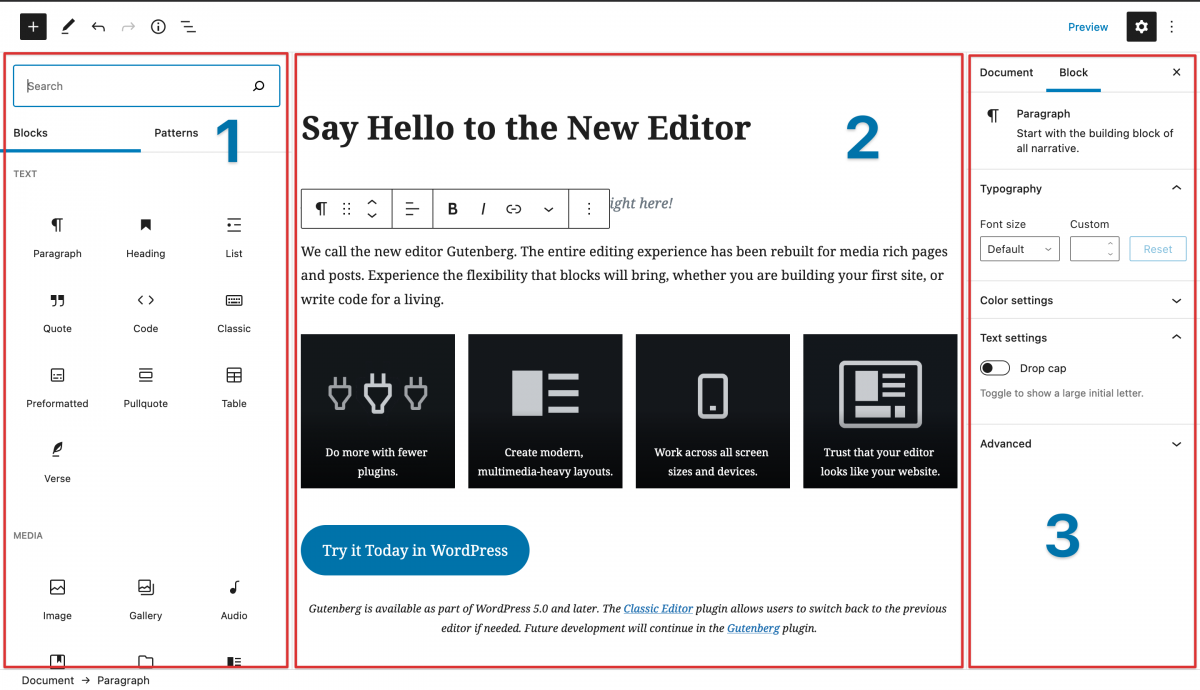
The new block patterns can be inserted by clicking on the plus icon in the upper left corner of the WordPress editor. The new block inserter two tabs for individual blocks and patterns. With a click on a template, the blocks are automatically inserted at the end of the editor.
The current implementation is also my only criticism of the new feature. The patterns were squeezed into the rather small insert in the sidebar and suffer noticeably from the lack of space. The block templates can be classified into different categories, but they are still displayed one below the other in a list. As a result, all of this is very confusing and is guaranteed not to work well with many patterns. I hope that WordPress 5.6 will improve this.
Four reasons for block patterns in WordPress
But let’s now talk about the numerous advantages of block patterns and why they represent a significant improvement for the Gutenberg project.
1) Gutenberg becomes a full-fledged page builder
The new block editor has often been touted as a page builder, including by me. The reality, however, is that the previous features and functions in WordPress Core cannot keep up with well-known plugins such as Elementor, Beaver or Visual Composer.
An essential function is the use of ready-made layouts, such as Elementor offers with its template kits or Divi with its layout packs. It takes a lot of effort to manually recreate complex layouts with lots of nested elements or multiple columns each time.
With the block patterns, the Gutenberg editor takes another very important step towards the page builder. The creation of static pages with several sections and a more complex layout is much faster for users with block templates and can be implemented with just a few clicks. Select a template, adjust the content, done.
2) Simplified setup and setup of themes
As a WordPress theme developer, it has always been a task to enable users to create complex layouts and quickly recreate the demo website. Sophisticated page templates, layout options in the customizer, widgets, shortcodes, custom post types – I’ve seen pretty much every method or used it myself. None of it was optimal.
Recently, many themes have switched to leaving the layout area completely to a page builder, so they have been specifically designed for the use of a plugin such as Elementor. In my opinion, not perfect either, because it requires additional plugins and page builders are often almost independent CMS with their own UI and no longer have much to do with WordPress. A lock-in effect and a steep learning curve are often the result.
And block patterns solve this dilemma:
Theme authors can provide the user with elaborate designs and layouts for various website areas without having to resort to shortcodes, widgets, option panels or external plugins.
Users can insert complete page layouts as block templates with one click and adjust the content according to their wishes. The theme demo is reproduced in your WordPress installation in a few seconds.
For me as a theme developer a dream and a reason for this very euphoric en post.
3) Complex custom blocks become unnecessary
I believe that with block patterns, many larger, complex blocks of additional plugins or block collections are no longer absolutely necessary. Many WordPress developers have created their own blocks for certain sections, including hero images, portfolios, services, features or pricing blocks.
In the future, many of these blocks can also be implemented as patterns, because they often only consist of basic elements such as columns, paragraphs of text, headings and images. Due to the nesting of core blocks, layout sections from patterns will be much more flexible and easier than developing complex blocks with rigid options.
Even if custom blocks offer more options overall, the combination of block styles and block patterns could be more than sufficient for many websites in the future, because many individual designs can be realized with it. Mainly because the core blocks receive additional design options and settings with each release.
4) Block templates are easy to create
The technical hurdles and entry barriers for developers are also not to be underestimated. Developing your own blocks is not exactly easy due to JavaScript and React and is made more difficult by the lack of documentation and the constantly changing Gutenberg API.
Block patterns, on the other hand, are very easy to create. For many theme developers and web designers, patterns will be a great playground where they can let off steam and get creative. By simply getting started with block patterns, in my opinion we will see a lot more commit and enthusiasm in the WordPress community than for previous Gutenberg features.
Not yet available with WordPress 5.5, but quite conceivable, would also be a possibility for every user to create and reuse block patterns directly in the Gutenberg editor. Alternatively, this feature would be feasible through additional plugins instead of in the core.
Maybe you’re interested in:
WordPress Block Patterns – A Game Changer?
These were my reasons why I’m really looking forward to the new block patterns.
What do you think?
Are block patterns a useful feature for you?
Do you think the new Gutenberg Editor is just getting started with this?
Is the Block Editor finally suitable as an alternative to conventional page builder plugins?
Write me a comment on Reddit WordPress hosting !