What Is Ubuntu – A Beginner’s Guide

The most popular Linux distro and desktop environment is Ubuntu with the Unity desktop environment. Other popular distros and desktop environments include Linux Mint with the Cinnamon desktop environment, and Fedora with the GNOME desktop environment.In this article we discuss about Ubuntu Linux distro.

What Is Ubuntu?

Ubuntu is a free, open-source operating system based on Linux. It is a popular choice for personal computers, servers, and in the cloud. Ubuntu focuses on ease of use, security, and reliability. It includes a wide range of software packages, including office applications, web browsers, media players, and programming tools.

Ubuntu is available in two editions, Ubuntu Desktop and Ubuntu Server. Ubuntu Desktop is designed to be easy to use and includes a range of applications such as LibreOffice, Firefox, and Thunderbird. Ubuntu Server is designed for servers and provides a secure, stable platform for hosting web applications, databases, and other services.


Ubuntu Linux Distribution Key Features

Some of Ubuntu’s many awesome features are:

Easy to Use: Ubuntu is one of the easiest Linux distributions to use, with a user-friendly graphical interface and a wide range of pre-installed applications.

Great Performance: Ubuntu offers great performance and stability with its long-term support releases, making it an ideal choice for both enterprise and home users.

Open Source: Ubuntu is open source, meaning anyone can view and modify the source code to make their own version of the OS.

Security: Ubuntu is designed with security in mind, with regular security updates and a range of security tools.

Community Support: Ubuntu has an active community of users and developers who are always happy to help with any problems or questions.

Variety of Software: Ubuntu provides a wide range of free, open-source software for users to choose from.

Flexibility: Ubuntu is highly customizable, allowing users to easily customize their system to fit their needs.


Ubuntu Linux vs Debian

Ubuntu Linux and Debian are two of the most popular Linux distributions. They both share a common ancestry, as Ubuntu is based on Debian.

The main difference between Ubuntu and Debian is that Ubuntu is designed to be easier to use and has a more user-friendly interface. Ubuntu also has more modern and updated packages than Debian, and its package management system is better suited for novice users. Debian, on the other hand, is more focused on stability and security, and is designed to be more customizable and flexible.

In terms of features, Ubuntu has more features than Debian. It has a wide range of graphical user interfaces, including GNOME, KDE, and Xfce, and has built-in support for multimedia and voice over IP applications. Debian, on the other hand, is more focused on providing a secure and stable system.

Both distributions are backed by solid communities and have great support. Debian is supported by a large volunteer community, while Ubuntu is backed by a commercial entity, Canonical, who provides support and development for the distribution.

In conclusion, Ubuntu and Debian are both great distributions. Ubuntu is more user friendly and is better suited for desktop use, while Debian is more focused on stability and security. Both have great communities and support, so it really comes down to personal preference when deciding which one to use.

Which is better Ubuntu LTS or normal?

It depends on your needs. Ubuntu LTS (Long Term Support) releases are intended for users who need stability and support for a longer period of time. These releases are supported for at least 5 years, while regular releases are supported for only 9 months. If you need to use the same version of Ubuntu for a long time, then LTS is the better choice. However, if you prefer to have the latest features and updates, then a regular release may be better.

Conclusion

In conclusion, Ubuntu is an excellent choice for anyone looking for a powerful, user-friendly operating system. It is easy to install, maintain and customize, and has a wide range of applications and features that make it an attractive choice for both experienced and novice users alike. With its commitment to open source software, Ubuntu provides a secure and reliable platform for users to explore and create with.

Overall, Ubuntu is an excellent choice for anyone looking for a powerful and reliable operating system that is also user-friendly and easy to use. With its open source development model and vibrant community, Ubuntu is sure to remain an essential part of the open source software landscape for many years to come.
How to Backup a Website in cPanel

If you’re a website owner, backing up your website is essential to protect your data, keep your website up and running, and ensure that you can quickly restore your website if something goes wrong. Fortunately, backing up your website in cPanel is easy, and it just takes a few simple steps to ensure your website is protected.


1. Log into cPanel.

The first step to backing up your website in cPanel is to log in to your cPanel account. You can do this by going to your hosting provider’s website and entering your login credentials. Once you’re logged in, you’ll be able to access cPanel’s features and tools.

2. Find the Backup Tool.

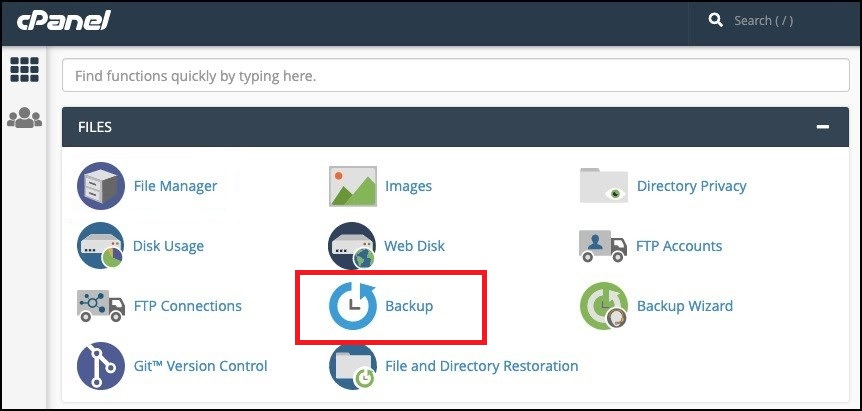
backup

Once you’re logged in to cPanel, you’ll need to find the Backup Tool. This can usually be found in the Files section of cPanel. When you open the Backup Tool, you’ll be presented with several options, including the ability to create a full website backup.

3. Create a Full Website Backup.

The next step is to create a full website backup. To do this, click on the Full Website Backup button. This will generate a backup of your entire website, including all of your files and databases. Once the backup is complete, it will be stored in your cPanel account, and you’ll be able to access it whenever you need it.

4. Download the Backup File.

Once the backup is complete, you’ll need to download the backup file. To do this, click on the download link for the backup file, and save it to your computer. This will ensure that you have a copy of the backup file in case you need it in the future.

5. Store the Backup File.

Once you have the backup file downloaded, it’s important to store it in a safe place. You should store the backup file in a secure location, such as an external hard drive or a cloud storage service. Storing the backup file in a secure location will ensure that it’s safe and accessible in case of an emergency.


Backing up your website in cPanel is a simple process that can help to protect your website from potential problems. By following the steps above, you can quickly and easily create a full website backup, download it, and store it in a secure location. This will ensure that your website is safe and that you can quickly restore it if something goes wrong.

How to Increase WordPress Memory Limit

Increasing the WordPress memory limit can be a useful way to boost the performance of your website. It can also help to prevent errors from occurring if your website is using more memory than it is allowed by default.

In this post, we’ll discuss what the WordPress memory limit is, why you may need to increase it, and how to do so. Let’s get started!

What is the WordPress Memory Limit?

The WordPress memory limit is the maximum amount of memory that WordPress can use to run its functions. This limit is set by your hosting provider, and it can vary significantly depending on the plan you use. The default limit is usually 32 MB, but some hosting providers offer plans with higher limits.

By default, WordPress won’t be able to utilize more than the maximum limit. If your website needs more memory, you’ll need to increase the limit.

Why Should You Increase the WordPress Memory Limit?

There are several reasons why you may need to increase the WordPress memory limit. If your website is using more memory than the limit allows, you may see errors or slow performance. Increasing the limit can help to prevent these issues.

It can also help if you’re running a complex website with many plugins or a large amount of data. If your website needs more memory to run properly, increasing the limit can help it run more smoothly.

How to Increase the WordPress Memory Limit

There are several ways to increase the WordPress memory limit. The easiest way is to use a plugin, such as WP-MemoryLimit or WP Maximum Memory. These plugins will allow you to easily increase the limit from the WordPress dashboard.

You can also increase the limit manually by adding a line of code to your wp-config.php file. You can find this file in the root directory of your WordPress installation.

To increase the limit, open the wp-config.php file and add the following line of code:

define('WP_MEMORY_LIMIT', '128M');

Replace 128M with the desired memory limit. Once you’ve added the line of code, save the file and upload it to your server.

Conclusion

Increasing the WordPress memory limit can be a useful way to boost the performance of your website. It can also help to prevent errors from occurring if your website is using more memory than it is allowed by default.

You can increase the limit using a plugin or by adding a line of code to your wp-config.php file. Whichever method you choose, be sure to save any changes before uploading the file to your server.

We hope this post has helped you learn how to increase the WordPress memory limit. If you have any questions or comments, let us know in the comments section below.