Gutenberg WordPress Block Patterns – A Game Changer or Not

Unfortunately, it has been a bit quiet here lately because I simply didn’t have the time for new contributions. When it comes to WordPress Block Patterns, my fingers itches because I see them as a potential game changer for Gutenberg. With WordPress 5.5 the new block patterns will finally be available and hopefully soon they will be able to use their full potential.

What are WordPress Block Patterns?

Block patterns are layout templates that can be inserted into the WordPress editor with one click. The block patterns simply consist of a defined list or collection of blocks. The blocks are already provided with sample content such as texts and images and can be used as a starting point and adapted. The advantage: Instead of having to laboriously build up a page layout with several sections block by block, there are now ready-made modules.

For starters, WordPress Core will provide some block patterns. In the German translation these are probably called block templates. Themes and plugins can also register block patterns. I assume that the range of available block templates will increase very quickly after the release of version 5.5 on August 11th.

Once inserted, the blocks from the pattern behave like normal blocks. This means that they can be changed, added to or deleted without being dependent on the original pattern. Even if the pattern is removed, the blocks are retained.


Use WordPress Block Patterns

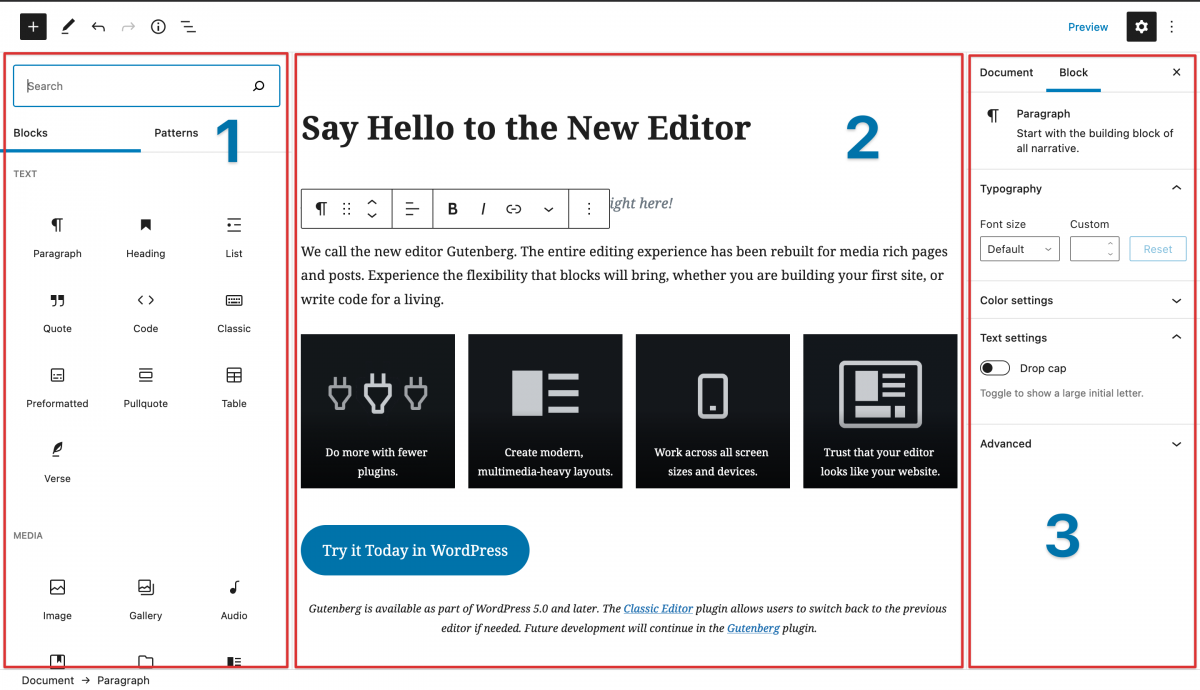
The new block patterns can be inserted by clicking on the plus icon in the upper left corner of the WordPress editor. The new block inserter  two tabs for individual blocks and patterns. With a click on a template, the blocks are automatically inserted at the end of the editor.

The current implementation is also my only criticism of the new feature. The patterns were squeezed into the rather small insert in the sidebar and suffer noticeably from the lack of space. The block templates can be classified into different categories, but they are still displayed one below the other in a list. As a result, all of this is very confusing and is guaranteed not to work well with many patterns. I hope that WordPress 5.6 will improve this.

Four reasons for block patterns in WordPress

But let’s now talk about the numerous advantages of block patterns and why they represent a significant improvement for the Gutenberg project.

1) Gutenberg becomes a full-fledged page builder

The new block editor has often been touted as a page builder, including by me. The reality, however, is that the previous features and functions in WordPress Core cannot keep up with well-known plugins such as Elementor, Beaver or Visual Composer.

An essential function is the use of ready-made layouts, such as Elementor offers with its template kits or Divi with its layout packs. It takes a lot of effort to manually recreate complex layouts with lots of nested elements or multiple columns each time.

With the block patterns, the Gutenberg editor takes another very important step towards the page builder. The creation of static pages with several sections and a more complex layout is much faster for users with block templates and can be implemented with just a few clicks. Select a template, adjust the content, done.


2) Simplified setup and setup of themes

As a WordPress theme developer, it has always been a task to enable users to create complex layouts and quickly recreate the demo website. Sophisticated page templates, layout options in the customizer, widgets, shortcodes, custom post types – I’ve seen pretty much every method or used it myself. None of it was optimal.

Recently, many themes have switched to leaving the layout area completely to a page builder, so they have been specifically designed for the use of a plugin such as Elementor. In my opinion, not perfect either, because it requires additional plugins and page builders are often almost independent CMS with their own UI and no longer have much to do with WordPress. A lock-in effect and a steep learning curve are often the result.

And block patterns solve this dilemma:

Theme authors can provide the user with elaborate designs and layouts for various website areas without having to resort to shortcodes, widgets, option panels or external plugins.
Users can insert complete page layouts as block templates with one click and adjust the content according to their wishes. The theme demo is reproduced in your WordPress installation in a few seconds.
For me as a theme developer a dream and a reason for this very euphoric en post.


3) Complex custom blocks become unnecessary

I believe that with block patterns, many larger, complex blocks of additional plugins or block collections are no longer absolutely necessary. Many WordPress developers have created their own blocks for certain sections, including hero images, portfolios, services, features or pricing blocks.

In the future, many of these blocks can also be implemented as patterns, because they often only consist of basic elements such as columns, paragraphs of text, headings and images. Due to the nesting of core blocks, layout sections from patterns will be much more flexible and easier than developing complex blocks with rigid options.

Even if custom blocks offer more options overall, the combination of block styles and block patterns could be more than sufficient for many websites in the future, because many individual designs can be realized with it. Mainly because the core blocks receive additional design options and settings with each release.


4) Block templates are easy to create

The technical hurdles and entry barriers for developers are also not to be underestimated. Developing your own blocks is not exactly easy due to JavaScript and React and is made more difficult by the lack of documentation and the constantly changing Gutenberg API.

Block patterns, on the other hand, are very easy to create. For many theme developers and web designers, patterns will be a great playground where they can let off steam and get creative. By simply getting started with block patterns, in my opinion we will see a lot more commit and enthusiasm in the WordPress community than for previous Gutenberg features.

Not yet available with WordPress 5.5, but quite conceivable, would also be a possibility for every user to create and reuse block patterns directly in the Gutenberg editor. Alternatively, this feature would be feasible through additional plugins instead of in the core.

Maybe you’re interested in:

Best web hosting Reddit

WordPress Block Patterns – A Game Changer?

These were my reasons why I’m really looking forward to the new block patterns.

What do you think?

Are block patterns a useful feature for you?
Do you think the new Gutenberg Editor is just getting started with this?
Is the Block Editor finally suitable as an alternative to conventional page builder plugins?

Write me a comment on Reddit WordPress hosting !

LocalWP – Local WordPress without a headache!

  WordPress Dev sandbox on your desktop

SANDBOX

More than 2 years ago I wrote a blog article about ServerPress, an application to run WordPress locally on the desktop. Unfortunately ServerPress has not been updated for a while. The biggest problem here is mainly the fact that ServerPress still doesn’t support PHP 8 – the latest version – and yet there are more and more hosts that offer PHP 8 as standard. So a site that would work fine on your desktop could ‘explode’ as soon as it goes live.

Now it is possible to create a Linux subsystem on Windows and that could actually solve all your problems… if you have the knowledge to set up such a subsystem. For many, that is just a step too far.

Not too long ago, however, I came across a solution that is quite beautiful. And easy to install too.

But – why would I want to install WordPress locally?

The first question, of course, is why you would want to install WordPress locally. This can be for a number of reasons. One good reason is that before you want to use plugins on your site, you want to test them first. Another reason could be to try out so-called ‘code snippets’ safely in an offline environment first. Both to prevent your website from suddenly going down due to a mistake. And a third good reason could be that you develop code for WordPress yourself. Working with a debugger is so much more convenient when it’s possible locally.

Of course you can also do this in a staging environment online, but the advantage of a local environment is that it is much easier, especially if code needs to be modified. Not to mention when to debug code.

Now it is quite possible to install a WAMP (Windows Apache MySQL PHP) stack on your PC yourself, but that requires quite a bit of work to set up properly. In addition, it takes up quite a bit of space on your hard disk and puts quite a drain on your system resources. So I was happy to find an alternative solution…


LocalWP

LocalWP started out as an independent Open Source project, until it died a soft death. Luckily, the folks behind FlyWheel hosting found this and decided to revive it. Not as Open Source, but much more user-friendly than the original project.

LocalWP is therefore a way to install WordPress locally. But it goes much further, but I’ll talk about that later in this article.

First of all, let’s look at the simplest form of use. You want to install WordPress locally to try things out…

Playing in the sandbox with LocalWP

The first thing to do then, it won’t surprise you, is to download LocalWP. It’s nice that -unlike the ServerPress desktop server- LocalWP is available for all three major platforms: Windows, MacOS and Linux.

After installing it on your computer, it is actually very simple. You start the application, you enter the name for your new website and WordPress is installed. With the buttons ‘Admin’ and ‘Open Site’ you can be taken to the Dashboard or the front of the site respectively.

And there you can do whatever you want to do.

If you want to place a copy of your live site on your desktop, I can recommend using All in One Migration, a plugin that I have mentioned several times on this site. You can easily download your website to your desktop and upload it within your local WordPress installation.

An alternative is to use the export function of LocalWP itself. You will then receive a ZIP file containing the entire contents of the wp-content folder, plus an import script for the database. After the database import you will also have to update the URLs. You can use Elementor’s built-in function for this if you use Elementor, or else Velvet Blue Update URL is a great solution.


As far as the simple use, where you simply want to download WordPress locally. But LocalWP offers more. Let’s take a look at those possibilities too.

Synchronization with your website

Pretty cool, but not for most of us is that you can literally work on your website locally, and then push the changes to your website. Unfortunately your hosting provider has to support this and right now the only two hosts that do are Flywheel and WP Engine. Both hosts who have a large customer base in the US, Canada, EU & UK.. However, if you find LocalWP worthwhile, I would certainly encourage you to whisper to your host that you are interested in an integration with your website. Who knows?

Use of ‘blueprints’

Do you regularly create websites, using the same plugins and theme every time? Save time now by using ‘blueprints’. In addition to downloading LocalWP as an application, you can -it does not have to be – also create an account on the LocalWP website. On this website you can, for example, install extra add-ons for LocalWP or define your ‘blueprints’. If you then log in to your local installation, you can choose from different blueprints when creating a new website.

MailHog

MailHog is an application that captures all outgoing email. The moment MailHog -a part of LocalWP- is activated, every email ‘sent’ by your local LocalWP installation will end up in MailHog, so you can easily see which mails are being sent.

LiveLinks

For ‘LiveLinks’ you must have created a LocalWP account. But if you want to show your local website to someone, you can. You send that person a unique link, so that he can watch (and test) the website you are working on on your PC. No one else can do this. And if you want to revoke access, you can simply delete the ‘live link’.

Various Add-ons Available

In addition, a number of add-ons are available. I won’t go over all of them, but some that I’ve used myself are:

Image Optimizer – All images are compressed, which can make the site quite a bit faster.

Table Plus – For the developer and power user: One-click access to the tables of the site’s database. Quite a bit more efficient than working with PhpMyAdmin.

Cloud Backups – Especially useful for a website that is still under development. Easily make incremental backups to a cloud provider (there are several to choose from). In this way you can easily go back to a ‘previous version’, which is ideal, especially when you are busy with programming. But it can also be nice when you test plugins. Try a set of settings, make a backup, test the situation and if it’s not what you expected, take the backup one step back.

Xdebug + VS Code / Xdebug + PhpStorm – Quick and easy install debugging for two popular PHP editors, VS Code (my favorite) and PHPStorm. No hassle with configuration files, but with a few mouse clicks LocalWP and your favorite editor ‘talk’ to each other.

Instant Reload – Handy when you work with two screens. As soon as you save a CSS file in your editor, the website refreshes in the browser.
The documentation on how to create an add-on is publicly available, so keep an eye on the add-on directory for new add-ons.


Conclusion

I’m excited, LocalWP is not only a convenient way to develop and test offline sites, but also increases production. The only ‘challenge’ in the beginning was where exactly LocalWP stores the sites. Because that’s not exactly clear. But that is in your user folder under ‘Local Sites‘.

Unlike Serverpress Desktop Server, LocalWP does not have a ‘paid version’. Also the add-ons are so far- all free. The revenue model of LocalWP is mainly to draw attention to the specialized WordPress Hosting Services  -FlyWheel –  that has released this program.

FASTPANEL and ISPConfig Hosting Control Panel Compare & Reviews

We  Cloudspoint, continue to review web applications available on www. Today we have a review of the FASTPANEL and ISPConfig Hosting Control Panel.

FASTPANEL Hosting Control Panel

FASTPANEL is a free server control panel that allows you to work with all the necessary options: manage websites, SSL, mail, databases, backups, etc.

fastpanelThe panel has a user-friendly interface and available in many different languages. For the Fastpanel installation, you must have VPS or dedicated server with the Debian 8, 9, 10, 11 (64-bit), Ubuntu 18.04, 20.04 (64-bit) or CentOS 7 (64-bit) OS.
After installing the OS+Fastpanel together take up 5 GB of disk space and consume 400-500 MB of RAM and CPU load is minimal, so the panel is suitable for working with $5  digitalocean’s server.

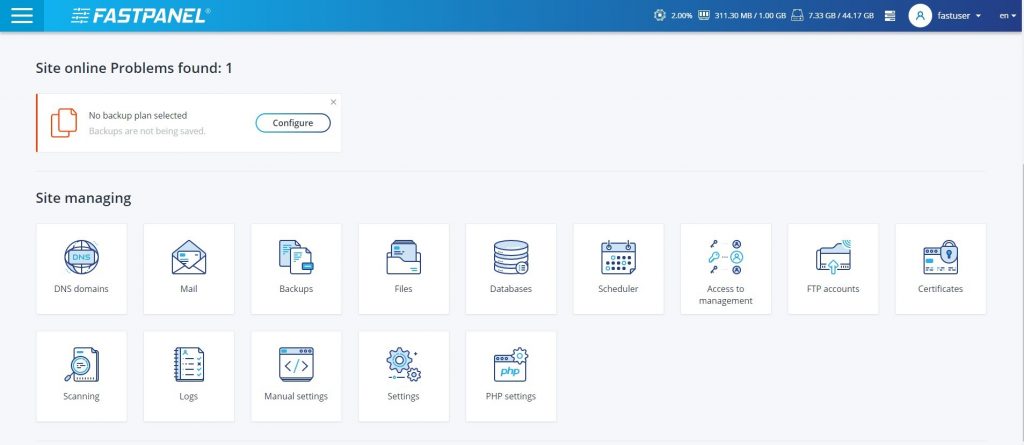
The FASTPANEL panel has all the “server manage” set of tools, the Hosting Control Panel allows you to edit DNS, set up mail, backup, create a database, also there is a built-in file manager.

Among PHP handlers, there is a choice between Apache Module, PHP-FPM and FastGGI.. When adding a site, you can immediately install WordPress.

There is functionality for corn jobs, configuring FTP, uploading and issuing SSL certificates. You can view the logs, scan the server for viruses, or edit specific PHP versions.

The panel left a positive impression on the VPS hosting community. If you have wanted to test something more modern than the Vesta panel or SSH, try FASTPANEL.

ISPConfig Hosting Control Panel

ISPConfig is a free control panel for servers running Linux, With ISPConfig you can manage sites on the server through a convenient web interface, work with mail, FTP, manage WordPress installation and other tasks.ISPConfig

ISPConfig is great for working in Nginx + PHP-FPM mode.

The panel can be installed on servers with this OS: Debian 9, 10, Ubuntu 16.04 – 20.04, CentOS 7, 8.

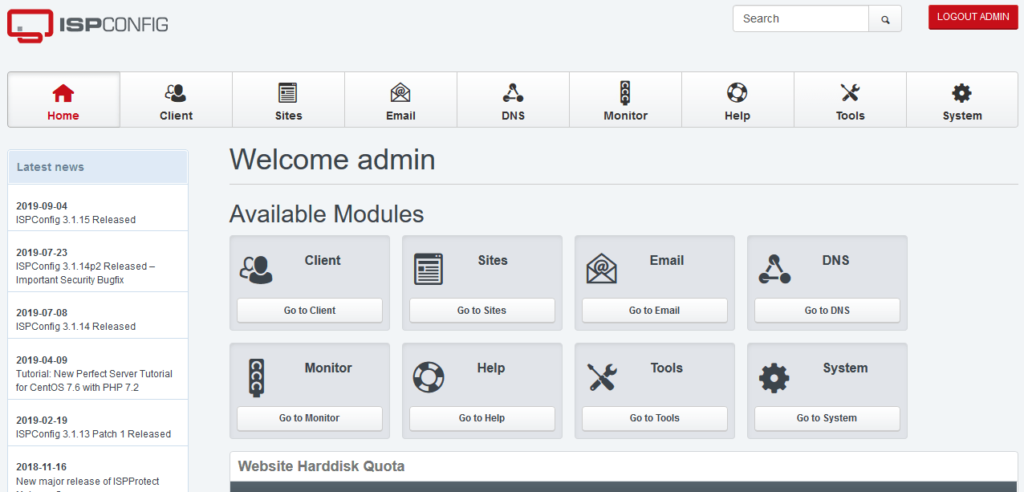
ISPConfig allows the server administrator to set up new websites, email accounts, DNS records, create MySQL databases, FTP accounts, cron tasks, and more through a web browser interface.

There are four levels of access to the control panel:

  • Administrator
  • Reseller
  • User
  • Mail account

Supported services:

  • HTTP: Apache and Nginx
  • SMTP: Postfix
  • POP3 / IMAP: Courier and Dovecot
  • FTP: PureFTPd
  • DNS: BIND, PowerDNS and MyDNS
  • Database: MySQL

Try ISPConfig with DigitalOcean’s servers.