How to Setup Batch and Storage accounts in the Azure portal

Before you manage the Azure Batch services from a .Net application, you have to create the Azure Batch account and Storage account. You can use the Azure portal, Powershell, Azure CLI, or the Batch Management API to create these accounts.

In this unit, you’ll create an Azure Batch and Azure Storage account using the Azure portal.

Create New Storage Account

  1. Navigate to the Azure portal  in your favorite browser.
  2. On the Azure portal menu or from the Home page, select Create a resource.
  3. In the Search the Marketplace search box type storage, then select Storage account.
  4. Select an existing resource group or create a new one.
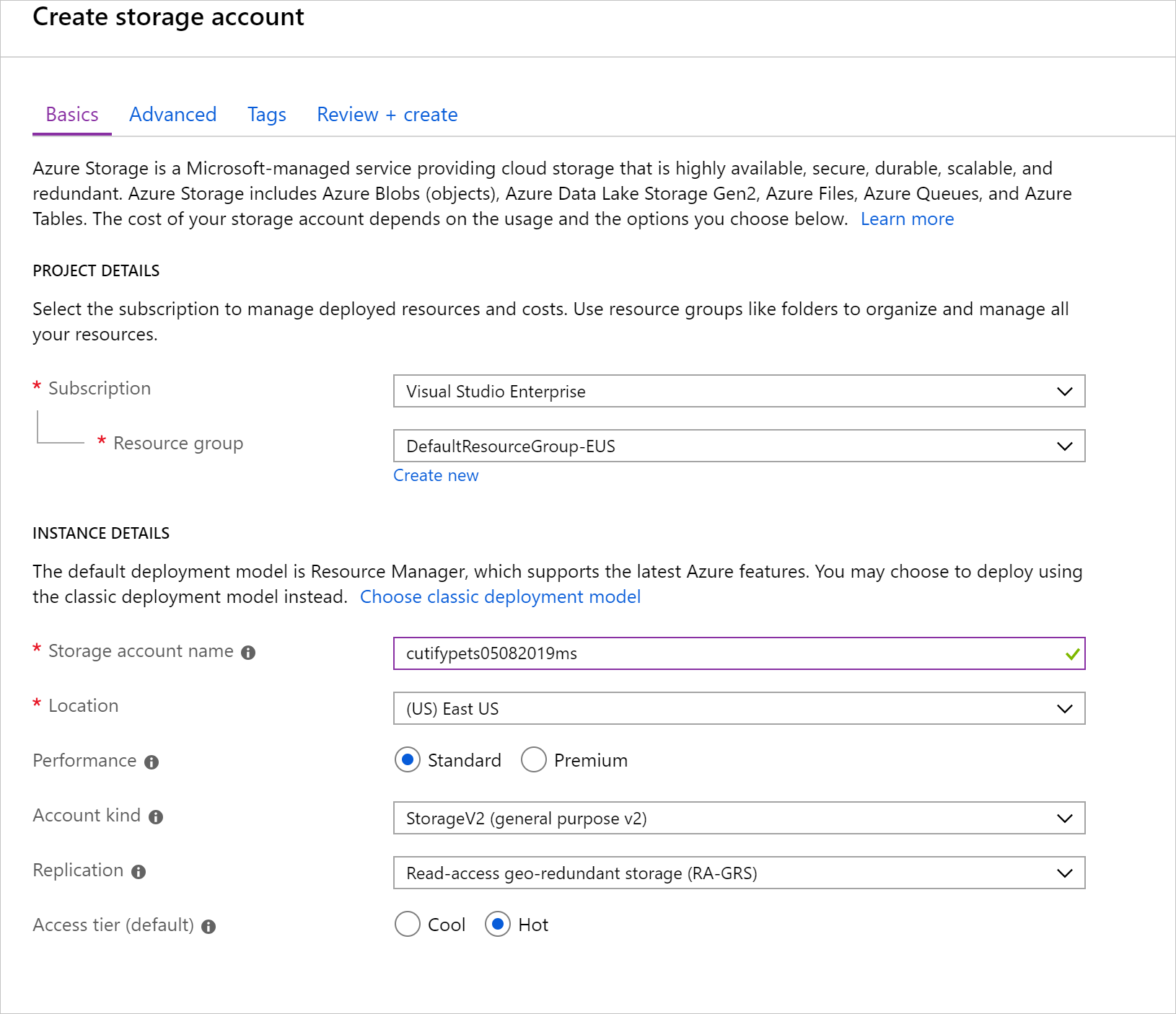
  5. Select Create to open the Create storage account form, as shown in the following screenshot.storage-account
  6. In the Storage account name field, enter a unique name. An example might be cutifypets<date><your initials>.
  7. Select a location close to you from the available options.
  8. Leave all the other options as their defaults and select Review + create, followed by Create.
  9. Wait for the deployment to complete. We now have a storage account that we’ll use in our processing to store input and output files. We’ll associate this storage account with our Batch account shortly.

Create new Batch Account

In order to create Batch workloads, we need to create an account within the Batch service.

  1. In the left navigation bar, select Create a resource.
  2. In the Search the Marketplace search box type batch, then select Batch Service from the list.
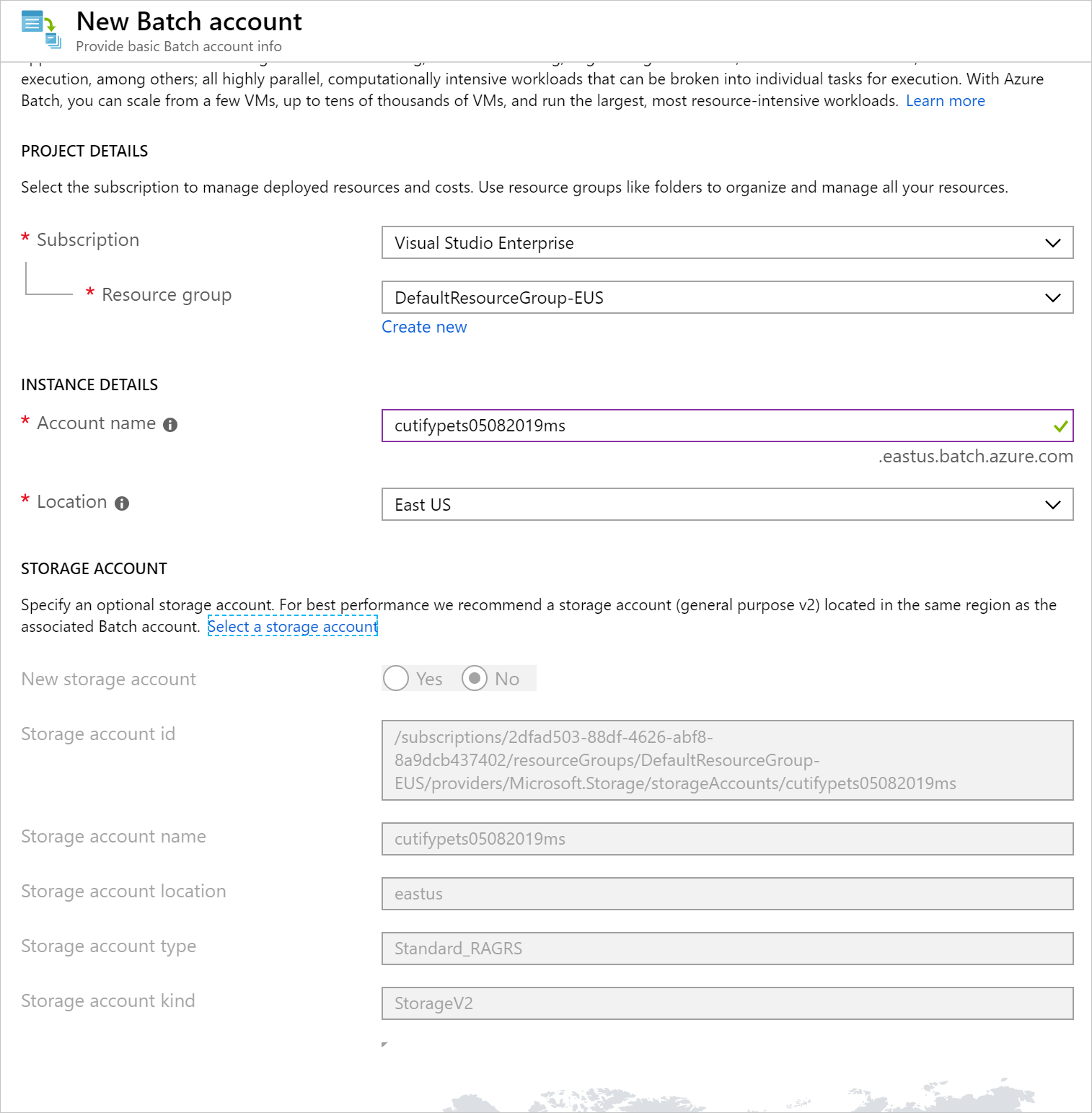
  3. Select Create to open the New Batch account form.batch-service
  4. Select an existing resource group, or create a new one for the resource we are adding in this module. To simplify cleanup once you have finished with this module, we recommend creating a new resource group. Note the name of the resource group you are using – it will be needed throughout these exercises.
  5. In the Account account name, enter a unique name. For example, you could enter cutifypets<date><your initials>.
  6. Select the link called Select a storage account, and in the panel that opens select the storage account your created earlier.
  7. Leaving all the other options as their defaults, select Review + create.
  8. Select Create.

    1 batch service

  9. Wait for the deployment to complete.
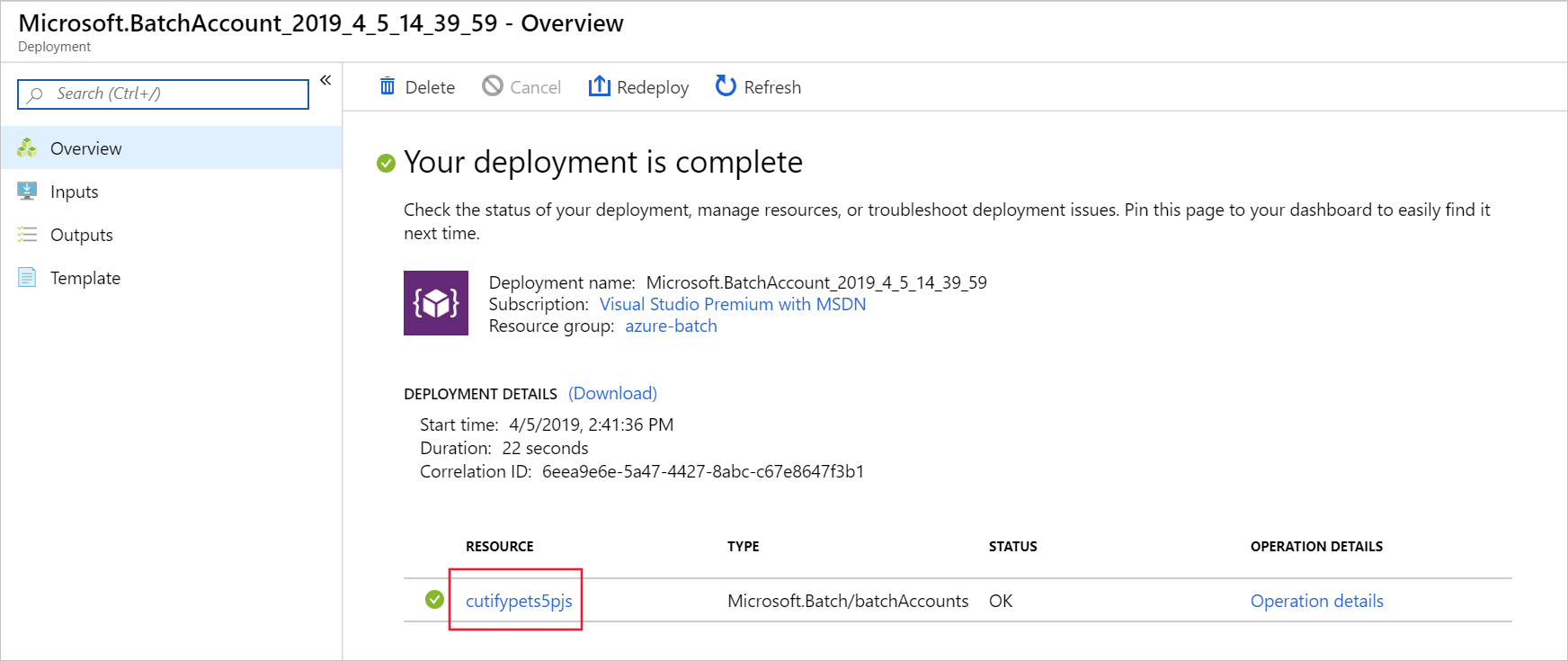
  10. On the Your deployment is complete screen, select the link to the Batch account, as shown in the following screenshot.
Create an application package containing ffmpeg

For our scenario, we’ve decided to enlist the help of FFmpeg to do our video conversion. FFmpeg is a powerful open-source multimedia framework that can, among many other things, decode, encode and transcode multimedia files. it’s a great choice for making website animated GIFs from our pet videos. To use the framework, we’ll add it as an application package to our Batch account. First we need to download a copy from the official FFmpeg site so we can then upload it into our Batch account.

  1. Open a new tab in your browser, and navigate to https://ffmpeg.zeranoe.com/builds/win64/static/ffmpeg-3.4-win64-static.zip.
  2. Save the zip file locally.
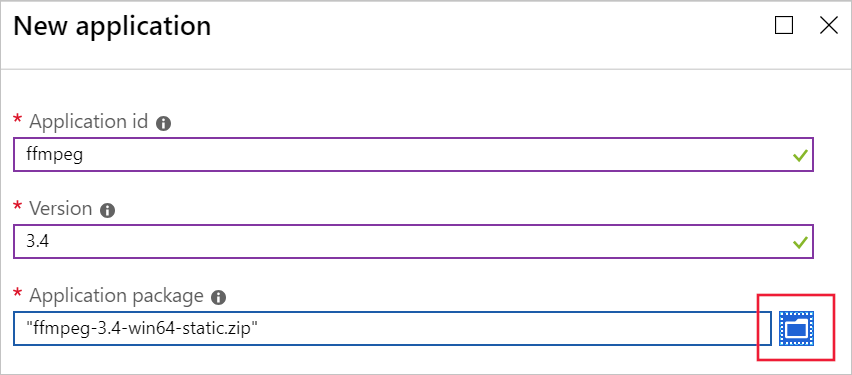
  3. Back in the Batch account UI in the portal, select Applications under the Features section of the sidebar, and then select Add to open up the New application configuration form.add-application-to-batch
  4. In Application id type ffmpeg.
  5. In Version type 3.4.
  6. In Application package, select the folder icon to the right.
  7. Navigate to the folder containing ffmpeg-3.4-win64-static.zip that you downloaded, and select Open.
  8. Select Submit to upload the app to our Batch account. This step can take a few moments, so wait for it to complete.
  9. Leave the Azure portal open for the next exercise.
Create Azure Batch workloads from .NET app

Azure Batch is a collection of resources you combine together to produce a large-scale parallel, highly performant solution.

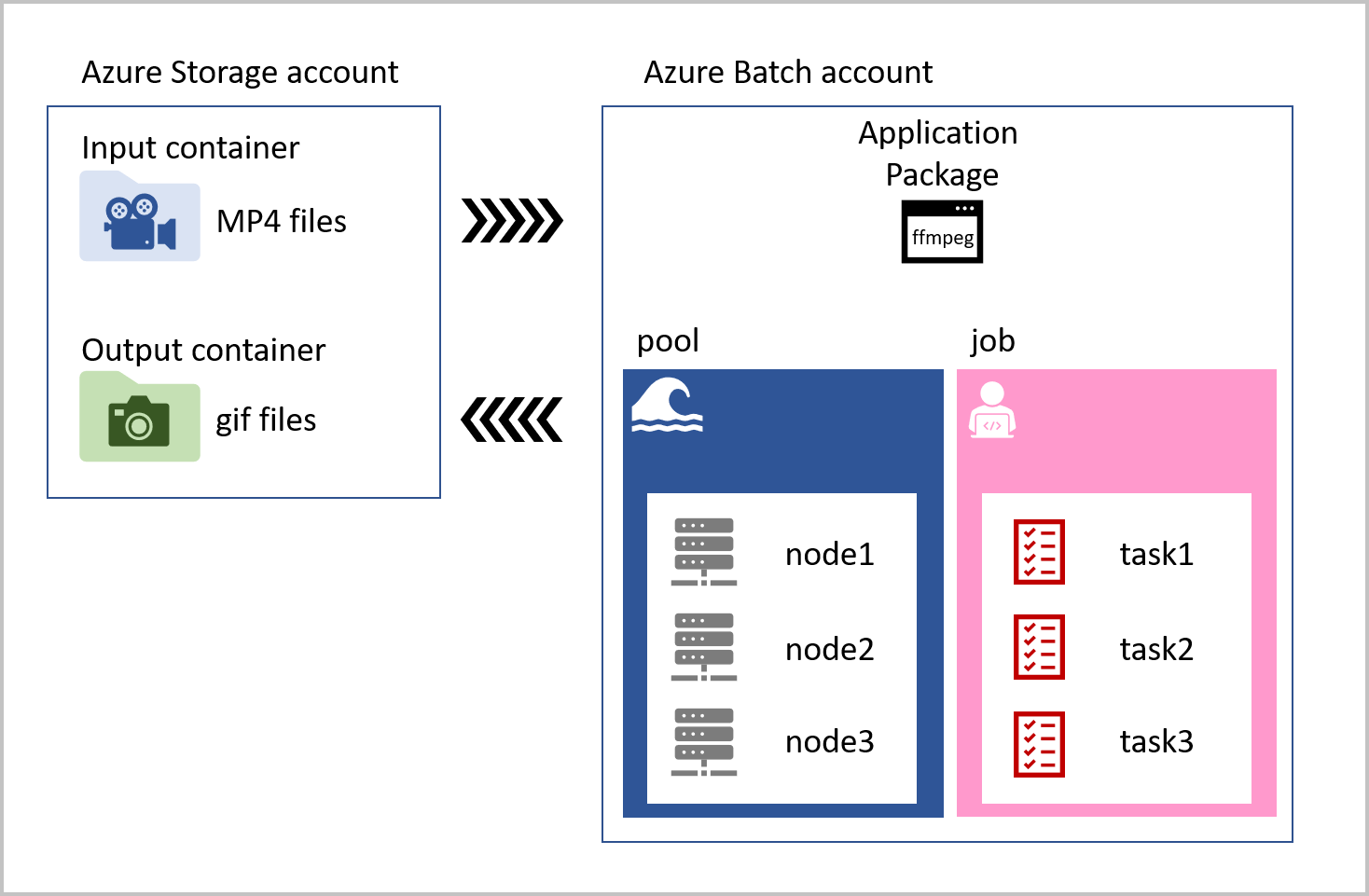
You decide to write the app that manages the entire Azure Batch process as a .NET Core console application for now. First, the app uploads the pet videos to the cloud. It then creates an Azure Batch pool with compute nodes (Virtual Machines). The app then creates a job to run on those nodes.

Azure BatchThe job that runs on each compute node contains tasks for every video that has been uploaded to the input storage container. The task loads the MP4 pet videos, convert them to animated GIFs, and saves the files to an output container. The task reference the ffmpeg library that is stored as an application package in the Azure Batch account. Our solution is visualized in the following diagram.

Azure Batch is used in combination with Azure Storage. Azure Storage provides the location for any input data, a place for logging and monitoring information, and storage for the final output. The applications that an Azure Batch runs can also be stored there, or a more flexible option is to use the application package feature of Azure Batch.

The components of Azure Batch are:

Azure Batch account: A container that holds the following resources needed for our Azure Batch solution:

  • Application Package: Used to add applications that can be used by tasks in a Batch. An Azure Batch account can contain up to 20 application packages. A request can be made to increase this limit if your company requires more.
  • Pool: Contains compute nodes, which are the engines that run your Batch job. You specify the number, size, and operating system of nodes at creation time. An Azure Batch account can contain many pools.
  • Node: Each node can be assigned a number of tasks to run, the tasks are allocated and managed by Azure Batch. Nodes are associated with a specific pool.
  • Job: Jobs manage collections of tasks. A job is associated with a specific pool. An Azure Batch account can have many jobs.
  • Task: Tasks run applications. These can be contained in an application package, or in an Azure Storage container. Tasks process input files, and on completion can write to output containers.

Before you can start to manage the Azure Batch components from within a .NET application, you have to create the Azure Batch account and Azure Storage account. You can use Azure portal, Powershell, Hosting options or Azure CLI to create these accounts.

Why use an app to manage Batch workloads

Using an app to control Azure Batch processing enables you to automate the running and monitoring of the tasks in your Azure Batch. The rich set of client APIs that are available allow you to control the entire Batch workflow from your code. Once the batch processing has completed, the app can then delete the created resources automatically, keeping the Azure costs low.

Batch workloads make it possible to scale to thousands of nodes, making solutions that need processor intensive compute resources, like video trans-coding, weather forecasting, and image analysis more feasible. All these use cases become more efficient when they’re managed programmatically.

Batch client service APIs

Microsoft has released Batch APIs for a range of languages. Using these client libraries, you can programmatically control all the components of the Batch process. From the authentication, processing files, creating pools of nodes, creating jobs with tasks, and then monitoring the state of those running tasks.

In .NET, these Batch APIs are loaded as NuGet packages into your apps. We’ll also use the Azure Storage client library to manage files and assets in our solution.

How to use a .NET app to control Azure Batch

The steps you’ll be following in the rest of the module create Azure Batch and Azure Storage accounts using the Azure portal. Then you’ll upload the ffmpeg application as an application package to make it available to use in tasks. Your app will be using tasks that run ffmepg to convert the videos.

With the Batch and Storage accounts created in the Azure portal, you’ll then need to create a .NET Core console app in the Cloud Shell that uses the Azure Batch and Azure Storage client libraries.

Your app will use the Azure Storage client library to upload the MP4 videos into blob storage. The app will then use the Batch client library to create a pool with three nodes (Windows Server VMs), create a job, and then add video conversion tasks to the job to run on those nodes. With the tasks running, the app needs to monitor their status, check they complete successfully, and clear down unwanted resources.

What is Cloud Hosting and How Does It Work?

Cloud Hosting

Cloud yes Cloud services actually mean server clusters, which typically consist of virtual machines. Instead of running your website or application on a single server, the cloud distributes the work across multiples.

Imagine having a computer that you can upgrade or downgrade on-the-fly depending on your needs. In short, cloud hosting services run your website on multiple servers rather than just one.

In cloud hosting, on the one hand, prices are usually quite moderate; they are usually between VPS and Dedicated Hosting. On the other hand, it allows extremely high flexibility and individual adjustments to your needs in terms of processor speed, RAM or storage space. The versatile customization options are the great advantage of cloud over VPS hosting.

It should therefore definitely play a role in your decision. If you don’t really want to use it, VPS is the better and cheaper option for you.

In addition to high performance and high operating load, the extremely minimized downtime is another big plus for cloud hosting. These are virtually eliminated by the distribution to several servers. Although downtime for most hosting options is always very low these days, in some situations even the slightest downtime can mean a loss, especially in the eCommerce business.

Learn more about