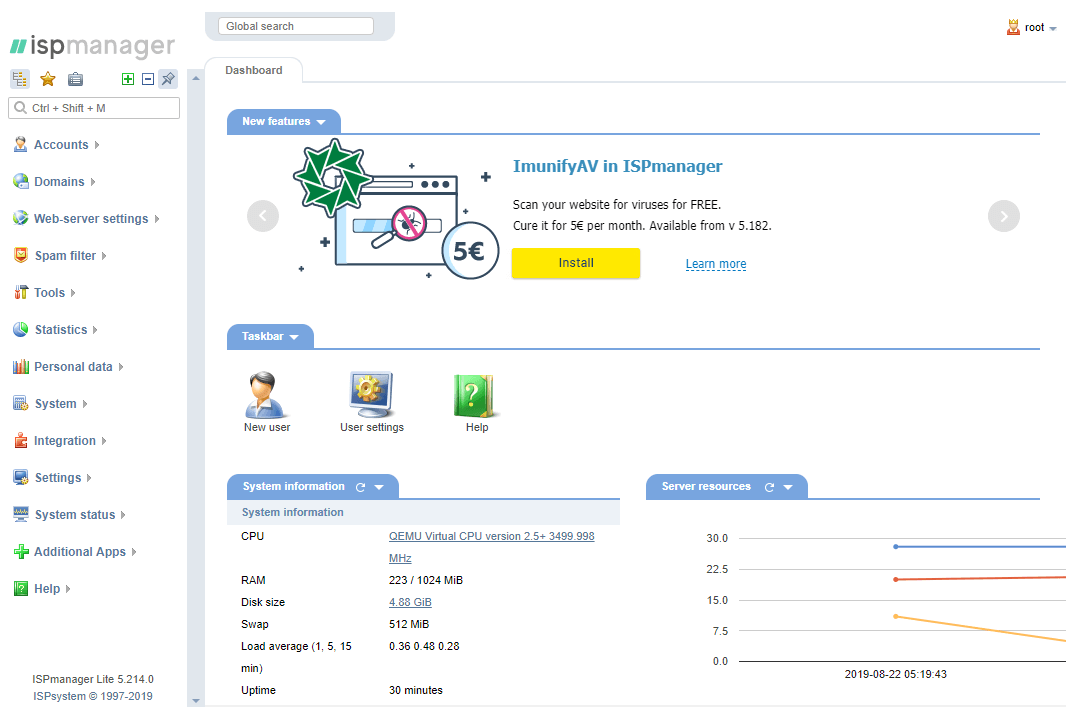
ISPmanager web server control panel – which one to choose for site management?

Today we want to analyze ISPmanager,  the panel for managing sites and servers – ISPmanager. The main advantages and versions of the panel.

What is ISPmanager?

ISPmanager 6 is a panel for deploying and managing web hosting services. It installs all the software necessary for the operation of sites, mail, databases. As a result, users can run projects in a ready-made web environment and then manage them through a graphical interface, without a console.

ISPmanager is used by both beginners and experienced  webmasters. The panel is useful for web-developers, system administrators, site managers. It eliminates the need to manually administer the server.


ISPmanager Features

Support and management of web servers- Apache and Nginx can be deployed and configured directly from the panel, and further administration is easy.

Create mail domains and manage mailboxes- You can create a mail domain and mailbox, configure rules and limits, use spam and virus protection, connect the Roundcube web interface. Get the configuration file for email clients.

Database support and management- MySQL/MariaDB, PostgreSQL, Percona Server, MongoDB (coming soon).


Create and manage sites- ISPmanager includes tools for easy work with sites at all stages: from installing a CMS to filling with content.

File management- The graphical file manager is able to download large amounts of data without dropping the connection. There is support for popular FTP servers.

Support for programming languages: You can add Python and Perl directly from the panel, without additional configuration of the repositories. It is possible to choose the version and mode of operation of the PHP interpreter for a particular site. In May 2022, support for the Node.js handler will be released.

Server and site protection: There are tools for backup, firewall settings, reflection of DDoS attacks (when connecting the DDoS-Guard module).


How to choose ISPmanager version

ISPmanager is presented in four versions. Three of them—Lite, Pro, and Host—are primarily for deploying and administering sites. As a rule, they are used on VPS or dedicated servers. Even providers can offer them as part of shared hosting. Licenses differ in the number of domains that can be managed. The fourth version – Business, is suitable for providers who want to organize virtual hosting and provide a panel to their customers. Let’s dwell on the differences in more detail.

ISPmanager Lite is convenient for freelancers and web studios that support a small number of projects. The version includes all the tools necessary for the developer: you can configure web servers, create sites, connect additional modules. The number of projects that can be managed through ISPmanager Lite is limited to 10 domains. At the same time, even a large team can work with the panel: the number of user accounts is not limited.

ISPmanager Pro does not differ from the Lite version in terms of technical capabilities – it also allows you to work with websites, create and maintain them. But unlike Lite, the Pro license supports up to 50 domains, which means it is suitable for more projects. Any number of employees can connect to the panel.

ISPmanager Host is suitable for those who want to work with the panel without restrictions on domains, for example, for fairly large web studios. The functionality of the Host version is similar to Lite and Pro.

ISPmanager Business
ISPmanager Business differs significantly from other versions and is intended for providers. The Business version provides the work of virtual hosting:

  • Manages the server cluster.
  • Allows you to configure reselling.
  • Allows you to limit RAM, CPU for users, so that the “neighbors” in the hosting do not interfere with each other.

ISPmanager Lite, Host, Pro and Business – the main differences

For web developers and site administrators. You can buy as part of shared hosting or install it yourself on VPS  or dedicated-servers:


Lite Pro Host
Up to 10 domains Up to 50 domains Unlimited number of domains
For one or more projects For the average number of projects To support a large number of sites

For providers and resellers:

Business
Unlimited number of domains
For business organization with ISPmanager


Which ISPmanager to choose depends on your tasks and the number of projects you plan to manage. For those who want to create and maintain sites, Lite, Pro or Host licenses are suitable. To organize your hosting and reselling, use Business. You can find out the details and ask questions about ISP control panels on the developer’s website: ispmanager.com


Cloud Hosting growth 18%

Cloud computing is expected to grow 18% this year, resulting in a market size of around $300 billion.

The Infrastructure as a Service segment of cloud computing, (such as that provided by AWS) is expected to grow by a whopping 27%! WordPress powers 39.6% of the websites in 2021, so wordpress hosting will boom!

What does that mean for you?

It means there are significant investments in infrastructure – and a massive opportunity for developers.

If you haven’t delved into the world of cloud computing, or want to add some new skills, it’s a great time. Companies are already scrambling to find talent with the skills to migrate or build new projects – and that means higher salaries.

To get you started, we’ve put together our top cloud skills:

1. Amazon Web Services

You’re likely already familiar with AWS, but if not, it’s a great place to start because it’s the largest ‘infrastructure as a service’ provider. Being the biggest means that most employers (and consequently public cloud projects) are using AWS, so they’ll want to hire someone familiar with it.

You can get up to speed and demonstrate your knowledge with our resources:

AWS Certified Cloud Practitioner 2020 (course)
AWS Certified Developer Official Study Guide: Associate (DVA-C01) Exam (book)
AWS Certified Solutions Architect Study Guide, 2nd Edition (book)

2. Docker

Docker has quickly changed the way developers stage environments and deploy code. It’s a huge benefit to DevOps – especially in continuous delivery, multi-cloud deployments and distributed teams.

By running applications in containers, Docker can reduce the number of instances required, as well as allowing developers to easily pack, ship, and run any application as a lightweight, portable, self-sufficient container, which can run virtually anywhere.

Docker for Web Developers (course)
Securing Docker Containers (talk)
Docker for Web Developers (book)

3. Cloud Security

Nearly two-thirds of organizations see security as the biggest challenge for cloud adoption. Those that can tackle hybrid cloud setups (a combination of public and private cloud), and mix security and containerization will be in especially high demand.

Learning public cloud security skills will depend on what setup/provider your company uses, so the respective AWS, Google Cloud courses will help, but further to that you can check out broader resources, such as:

Cybersecurity Essentials (book) – particularly chapter 15, Understanding Network Connectivity Devices
Hacking the Hacker (book)
Distributed Systems for Practitioners (book)

4. Google Cloud

Why double up on Cloud service providers? Many companies are now turning to multi-cloud deployments, with a mix of IaaS providers for added flexibility and performance, as well as public and private cloud. In fact, 53% of enterprises using cloud computing utilise a multi-cloud strategy.

Google’s market share also rose from 20-34% compared to 2019, so brushing up on some of the competing products such as Google Cloud can give you more versatility and an edge if you’re applying for a new role, or your company is expanding into new projects.

For Google Cloud resources, see:

Google Cloud Engineer Bootcamp (course)

GCP Cloud Architect Exam Bootcamp (course)

DevOps on Google Cloud Platform (course)

Google Cloud Platform Data Storage Management (course)

Official Google Cloud Certified Professional Cloud Architect Study Guide (book)

Official Google Cloud Certified Associate Cloud Engineer Study Guide (book)

As always, if you’d like to stay up to date with the latest in tech, and expand your skills, join SitePoint Premium and you’ll get access to our entire library of 600+ books, courses and talks for just $72/year or if you find best web hosting reddit upvoted for your projects, Digitalocean is the best options.

Happy Learning!

How to increase maximum upload file size in WordPress

When uploading media files, you may not be able to upload media files due to file upload size limitations. The upload size limit is displayed on the Media File Upload screen.


Maximum upload file size


In the picture above, the maximum upload file size is set to 80 MB. A media files rarely exceed 80 MB in size, so it doesn’t seem to be a problem normally. How you change this size may vary slightly depending on your hosting environment. If you need to change the maximum upload file size due to a file upload error, please try the following method to change the setting.


Editing the PHP.INI file to increase maximum upload file size

If you have access to your php.ini file, add the following code to your php.ini file.

If you are using a shared host, please create a php.ini file in your root folder and add the above code to make sure it works.

If you install a program such as Xampp on your PC to run WordPress, the location of the php.ini file is as follows (Most of them are from the Internet, so they may be inaccurate. If inaccurate, please let us know in the comments below and we will correct it).

php ini


Editing the .HTACCESS File to increase maximum upload file size

Try adding the following line to the end of the .htaccess file.

php_value upload_max_filesize 64M
php_value post_max_size 64M
php_value max_execution_time 300
php_value max_input_time 300

Adding the above code may throw an error depending on your hosting server. If you get an error when using this method on Bluehost, please refer to the instructions in the Changing memory_limit and max_execution_time settings on Bluehost section of this article.

The picture above shows the system information from the WordPress site using  A2 hosting. In the case of A2, the size of upload_max_filesize is set to 2MB.  If you want to change the file upload size, please add the above code to your .htaccess file and test it. If the problem is still not resolved, please contact A2 HOST.

Add to theme function file to increase maximum upload file size

Add the following code to your theme function file.

@ini_set( 'upload_max_size' , '64M' );
@ini_set( 'post_max_size', '64M');
@ini_set( 'max_execution_time', '300' );

Surprisingly, this method can easily change the file upload size.

If the server itself imposes a file upload size limit, you will need to contact your hosting company to resolve the issue. If you are using Bluehost VPS or Dedicated plan, please refer to “Changing wp_memory_limit and max_execution_time settings”.


Addition: If you receive the any error message, please refer to the above to increase the memory size.