cPanel and Ongoing madness associated with Hosting Companies

About the ongoing madness associated with hosting companies and their moves away from cPanel.

Liqudiweb, SiteGround, Godaddy, and a number of others are going through some rather painful growing pains in trying to jump ship away from cPanel. And customers are feeling that pain first hand. Tales of migration nightmares are rampant in the forums.

Last year’s cPanel rate changes have literally forced many hosts to take drastic action, by either hanging their hats on unproven control panels or by developing their own (aka, the” Godaddy’s Model”).

If you’ve lived in the hosting industry for a while, you are well aware of the Godaddy “control panel problem”. It’s just not easy to develop an easy to use, secure control panel, with all of the features web design professionals require. Toss in email management and DNS management and support and you’ve got a support training nightmare that seemingly never ends.

It’s not technology that makes a hosting company work, it’s people that make it work.

Sure, you can go with the “cloud” hosting solution route, geek out on self-training, Youtube videos ad nauseam, and run wild with a host that provides no support in a crisis. Who’s got time for that! I’m in the business to make money and serve my clients by giving them the best possible long-term options, so I can get more clients and make more money with the least amount of effort.

So back to conventional hosting. cPanel is the highest grade solution. But moving from the nearly perfect well-supported solution to a mediocre and rushed alternative, well, the results are fairly easy to predict.

So back to the subject at hand. Liquidweb and others are trying. And maybe in a year or two, they’ll have trained their people well enough to succeed in the transition process from something that’s well supported and relatively easy to manage to their flavor of the month control panel option.

For the time being, if you are with a host who is in the transition away from cPanel, get ready for a rough ride. Or, end the pain today by simply moving to an established cPanel host who is more zen in accepting what works best for their customers.

Thought for the day. Does your host value you as a customer, or consider you an expendable beta tester for their new control panel?

Your thoughts?


Azure Cloud – Add unit tests to your application

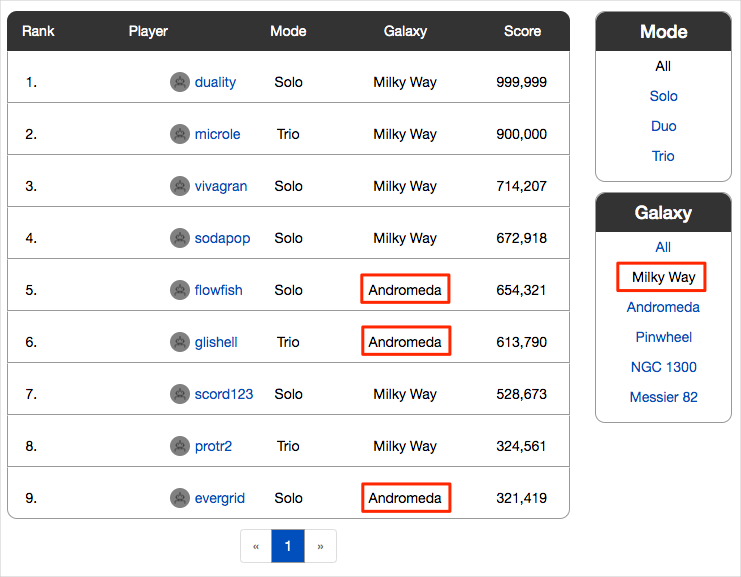
Andy is going to work with Mara to add unit tests to the automated build that Mara created with Microsoft Azure Cloud Pipelines. Regression bugs are creeping into their code and breaking the leaderboard’s filtering functionality. Specifically, the wrong game mode keeps appearing.

The following image illustrates Amita’s problem. When Amita selects “Milky Way” to show only scores from that game map, she gets results from other game maps, such as Andromeda.

azure-devops

Both Andy and Mara want to catch the error before it reaches Amita, the tester. Unit tests are a great way to automatically test for regression bugs.

Andy also thinks that adding the unit tests now will give them a head start as they improve the Space Game web app. The application uses a document database to store high scores and player profiles. Right now, it uses local test data. Later, they plan to connect the app to a live database.

A number of unit test frameworks are available for C# applications. Mara chooses NUnit because it’s popular with the community and she’s used it before.

Here’s the unit test you’re working with, along with Mara and Andy.


[TestCase("Milky Way")]
[TestCase("Andromeda")]
[TestCase("Pinwheel")]
[TestCase("NGC 1300")]
[TestCase("Messier 82")]
public void FetchOnlyRequestedGameRegion(string gameRegion)
{
const int PAGE = 0; // take the first page of results
const int MAX_RESULTS = 10; // sample up to 10 results

// Form the query predicate.
// This expression selects all scores for the provided game region.
Expression<Func<Score, bool>> queryPredicate = score => (score.GameRegion == gameRegion);

// Fetch the scores.
Task<IEnumerable> scoresTask = _scoreRepository.GetItemsAsync(
queryPredicate, // the predicate defined above
score => 1, // we don't care about the order
PAGE,
MAX_RESULTS
);
IEnumerable scores = scoresTask.Result;

// Verify that each score's game region matches the provided game region.
Assert.That(scores, Is.All.Matches(score => score.GameRegion == gameRegion));
}


You can filter the leaderboard by any combination of game type and game map.

This test queries the leaderboard for high scores and verifies that each result matches the provided game map.

In an NUnit test method, TestCase, provides inline data to use to test that method. Here, NUnit calls the FetchOnlyRequestedGameRegion unit test method like this:

C#
FetchOnlyRequestedGameRegion("Andromeda");
FetchOnlyRequestedGameRegion("Pinwheel");
FetchOnlyRequestedGameRegion("NGC 1300");
FetchOnlyRequestedGameRegion("Messier 82");
FetchOnlyRequestedGameRegion("Milky Way");
FetchOnlyRequestedGameRegion("Andromeda");
FetchOnlyRequestedGameRegion("Pinwheel");
FetchOnlyRequestedGameRegion("NGC 1300");
FetchOnlyRequestedGameRegion("Messier 82");

Notice the call to the Assert.That method at the end of the test. An assertion is a condition or statement that you declare to be true. If the condition turns out to be false, that could indicate a bug in your code. NUnit runs each test method using the inline data you specify and records the result as a passing or failing test.

Many unit test frameworks provide verification methods that resemble natural language. These methods help make tests easy to read and help you map the tests to the application’s requirements.

Consider the assertion made in this example:

C#

Assert.That(scores, Is.All.Matches<Score>(score => score.GameRegion == gameRegion));


You might read this line as:

Assert that the game region of each returned score matches the provided game region.

Here’s the process to follow:

  1. Fetch a branch from the GitHub repository that contains the unit tests.
  2. Run the tests locally to verify that they pass.
  3. Add tasks to your pipeline configuration to run the tests and collect the results.
  4. Push the branch to your GitHub repository.
  5. Watch your Azure Pipelines project automatically build the application and run the tests.

Fetch the branch from GitHub

Here you fetch the unit-tests branch from GitHub and check out, or switch to, that branch.

This branch contains the Space Game project that you worked with in the previous modules and an Azure Pipelines configuration to start with.

  1. In Visual Studio Code, open the integrated terminal.
  2. Run the following git commands to fetch a branch named unit-tests from the Microsoft repository, and then switch to that branch.
    Bash
    
    git fetch upstream unit-tests
    git checkout -b unit-tests upstream/unit-tests

    The format of this command enables you to get starter code from the Microsoft GitHub repository, known as upstream. Shortly, you’ll push this branch to your GitHub repository, known as origin.

  3. As an optional step, in Visual Studio Code, open the azure-pipelines.yml file and familiarize yourself with the initial configuration. The configuration resembles the basic one you created in the Create a build pipeline with Azure Pipelines module. It builds only the application’s Release configuration.


Run the tests locally

It’s a good idea to run all tests locally before you submit any tests to the pipeline. Here you do that.

    1. In Visual Studio Code, open the integrated terminal.
    2. Run dotnet build to build each project in the solution.
      dotnet build --configuration Release
    3. Run the following dotnet test command to run the unit tests:
      dotnet test --configuration Release --no-build

The –no-build flag specifies not to build the project before running it. You don’t need to build the project, because you built it in the previous step.

You see that all five tests pass.

Starting test execution, please wait...

A total of 1 test files matched the specified pattern.

Test Run Successful.
Total tests: 5
     Passed: 5
 Total time: 0.9320 Seconds

In this example, the tests took about one second to run.

Notice that there were five total tests. Although we define just one test method, FetchOnlyRequestedGameRegion, that test is run five times, once for each game map as specified in the TestCase inline data.

4. Run the tests a second time. This time, provide the –logger option to write the results to a log file.

dotnet test Tailspin.SpaceGame.Web.Tests --configuration Release --no-build --logger trx

You see from the output that a TRX file is created in the TestResults directory.

A TRX file is an XML document that contains the results of a test run. It’s a popular format for NUnit tests because Visual Studio and other tools can help you visualize the results.

Later, you’ll see how Azure Pipelines can help you visualize and track your tests’ results as they run through the pipeline.

5. As an optional step, in Visual Studio Code, open the DocumentDBRepository_GetItemsAsyncShould.cs file from the Tailspin.SpaceGame.Web.Tests folder and examine the test code. Even if you’re not interested in building .NET Core apps specifically, you might find the test code useful because it resembles code you might see in other unit test frameworks.


Push the branch to GitHub

Here you push your changes to GitHub and see the pipeline run. Recall that you’re currently on the unit-tests branch.

  1. In the integrated terminal, add azure-pipelines.yml to the index, commit the changes, and push the branch up to GitHub.
    Bash
  1. git add azure-pipelines.yml
    git commit -m "Run and publish unit tests"
    git push origin unit-tests
    

Watch Azure Pipelines run the tests

Here you see the tests run in the pipeline and then visualize the results from Microsoft Azure Test Plans. Azure Test Plans provides all the tools you need to successfully test your applications. You can create and run manual test plans, generate automated tests, and collect feedback from stakeholders.

  1. In Azure Pipelines, trace the build through each of the steps.You see that the Run unit tests – Release task runs the unit tests just as you did manually from the command line.
  2. Navigate back to the pipeline summary.
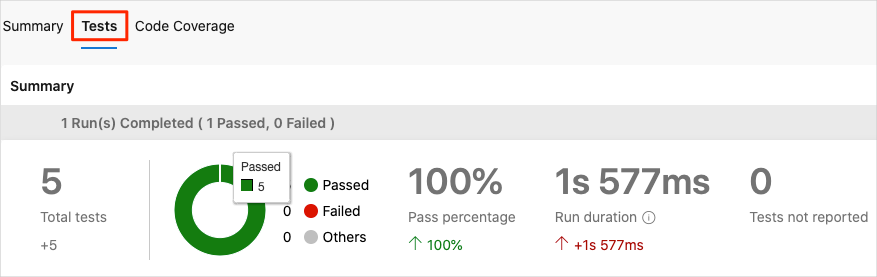
  3. Move to the Tests tab.You see a summary of the test run. All five tests have passed.test-tab-summary
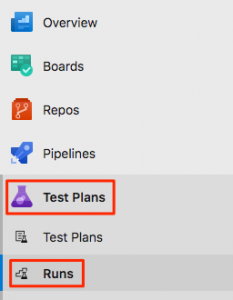
  4. In Azure DevOps, select Test Plans, and then select Runs.Azure testYou see the most recent test runs, including the one you just ran.
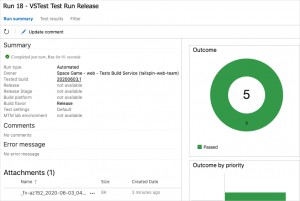
  5. Double-click the most recent test run.You see a summary of the results.azure test results In this example, all five tests have passed. If any tests failed, you could navigate to the build task to get additional details.

    You can also download the TRX file so you can examine it through Visual Studio or another visualization tool.

Although Mara and Andy have added only one test, it’s a good start and it fixes the immediate problem. Now, the team has a place to add more tests and run them as they improve their process.

Merge your branch into master

Mara and Andy are happy with their results, so they decide to merge the unit-tests branch to master. In practice, you would do the same. But for brevity, we’ll skip that process for now.

Set up your Azure DevOps environment

Get the Azure DevOps project

Here, you make sure that your Azure DevOps organization is set up to complete the rest of this module. You do this by running a template that creates a project for you in Azure DevOps.

The modules in this learning path form a progression, where you follow the Tailspin web team through their DevOps journey. For learning purposes, each module has an associated Azure DevOps project.


Run the template

Run a template that sets up everything for you in your Azure DevOps organization.

To run the template, on the Azure DevOps Demo Generator site, do the following:

  1. Select Sign In, and accept the usage terms.
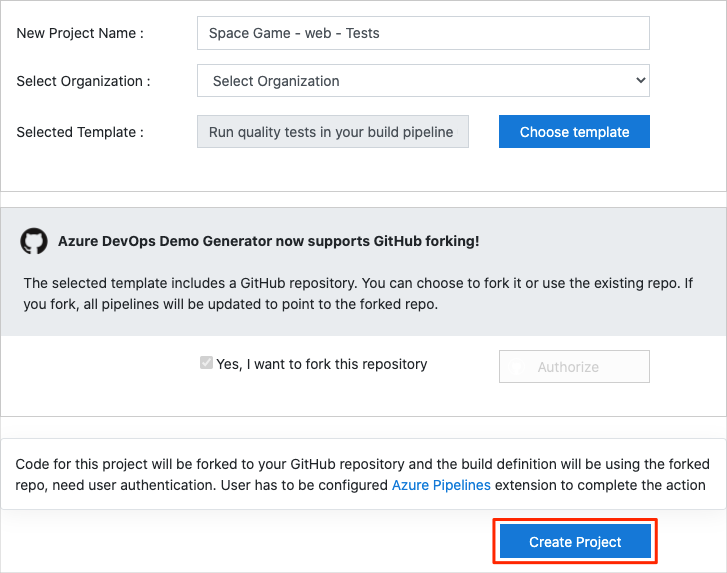
  2. On the Create New Project page, select your Azure DevOps organization, and then enter a project name, such as Space Game – web – Tests.
  3. Select Fork repository on GitHub, and then select Authorize. If a window appears, authorize access to your GitHub account.
  4. Select Create Project.azure devopsIt takes a few moments for the template to run.
  5. Select Navigate to project to go to your project in Azure DevOps.


Set your project’s visibility

Your fork of the Space Game repository on GitHub is initially public. The Azure DevOps template creates a project that’s initially private.

A public GitHub repository is accessible to everyone, whereas a private repository is accessible to you and the people you share it with. In both cases, only collaborators can commit changes to a GitHub repository.

A project on Azure DevOps works the same way. Users who aren’t signed in to the service have read-only access to public projects. Private projects require users to be granted access to the project and signed in to access the services.

For web development learning purposes, you don’t need to change any of these settings right now. But for your own projects, you need to decide what visibility and access you want to provide to others. For example, if your project is open source, you might make both your GitHub repository and your Azure DevOps project public. If your project is closed source, you would likely make both your GitHub repository and your Azure DevOps project private.

Move the work item to Doing

In this section, you assign yourself a work item that relates to this module on Azure Boards. You also move the work item to the Doing state. In practice, you and your team would assign work items at the start of each sprint, or work iteration.

Assigning work in this way gives you a checklist to work from. It gives others on your team visibility into what you’re working on and how much work is left. It also helps the team enforce work in process (WIP) limits so that the team doesn’t take on too much work at one time.

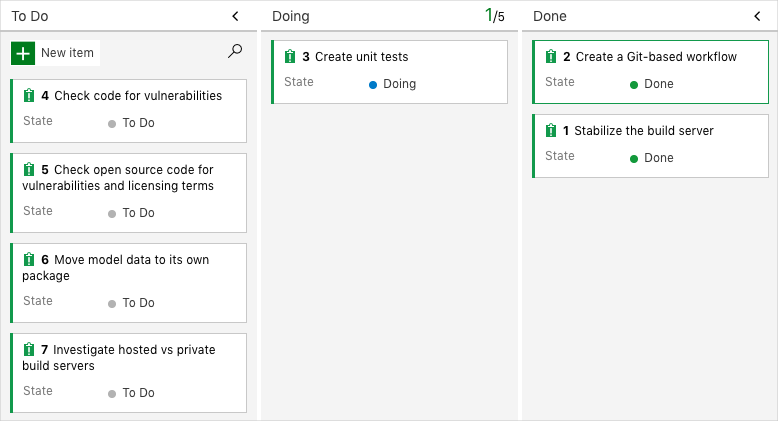
Recall that the team settled on these seven top issues:
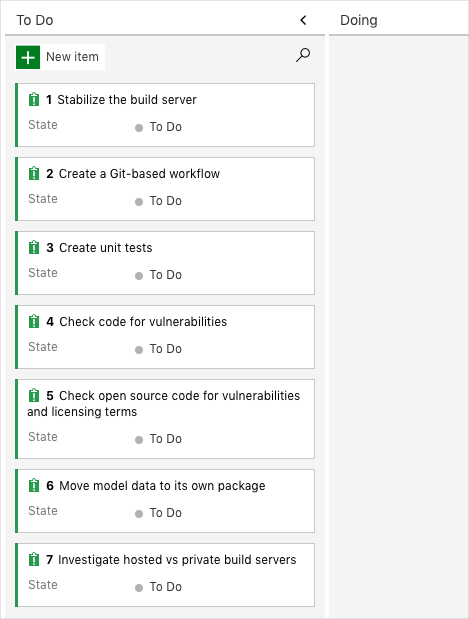
azure cloud build

Here you move the third item, Create unit tests, to the Doing column and assign yourself to the work item.

Recall that Create unit tests relates to running unit tests during the build so that Amita doesn’t have to deal with so many regression bugs when she tests out new builds.


To set up the work item:

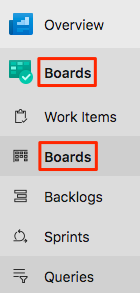
  1. In Azure DevOps, go to Boards and then, in the left pane, select Boards.azure-devops-menu
  2. In the Create unit tests work item, select the To Do down arrow, and then assign the work item to yourself.azure devops boards
  3. Drag the work item from the To Do column to the Doing column.azure devops boards doing

At the end of this module, after you’ve completed the task, you’ll move the card to the Done column.

Set up the project locally

Here, you load the Space Game project in Visual Studio Code, configure Git, clone your repository locally, and set the upstream remote so that you can download starter code.

Open the integrated terminal

Visual Studio Code comes with an integrated terminal, so you can edit files and work from the command line all from one place.

  1. Start Visual Studio Code.
  2. On the View menu, select Terminal.
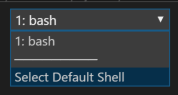
  3. In the drop-down list, select bash:vscode bash terminal

The terminal window lets you choose any shell that’s installed on your system, like Bash, Zsh, and PowerShell.

Here you’ll use Bash. Git for Windows provides Git Bash, which makes it easy to run Git commands.

4. Run the cd command to navigate to the directory you want to work from, like your home directory (~). You can choose a different directory if you want.

cd ~

Configure Git

If you’re new to Git and GitHub, you first need to run a few commands to associate your identity with Git and authenticate with GitHub.

Set up Git explains the process in greater detail.

At a minimum, you’ll need to complete the following steps. Run these commands from the integrated terminal:

Set up your project in Visual Studio Code

In this part, you clone your fork locally so that you can make changes and build out your pipeline configuration.

Clone your fork locally

You now have a copy of the Space Game web project in your GitHub account. Now you’ll download, or clone, a copy to your computer so you can work with it.

A clone, just like a fork, is a copy of a repository. When you clone a repository, you can make changes, verify they work as you expect, and then upload those changes back to GitHub. You can also synchronize your local copy with changes other authenticated users have made to GitHub’s copy of your repository.

To clone the Space Game web project to your computer:

  1. Go to your fork of the Space Game web project (mslearn-tailspin-spacegame-web) on GitHub .
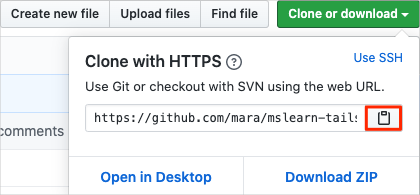
  2. Select Clone or download. Then select the button next to the URL that’s shown to copy the URL to your clipboard:github-clone
  3. In Visual Studio Code, go to the terminal window.
  4. In the terminal, move to the directory you want to work from, like your home directory (~). You can choose a different directory if you want.
cd ~

5. Run the git clone command. Replace the URL that’s shown here with the contents of your clipboard:

Bash

git clone https://github.com/your-name/mslearn-tailspin-spacegame-web.git

6. Move to the mslearn-tailspin-spacegame-web directory. This is the root directory of your repository.

Bash

cd mslearn-tailspin-spacegame-web

Set the upstream remote

A remote is a Git repository where team members collaborate (like a repository on GitHub).

Run this git remote command to list your remotes:

Bash

git remote -v

You see that you have both fetch (download) and push (upload) access to your repository:

Output

origin https://github.com/username/mslearn-tailspin-spacegame-web.git (fetch)
origin https://github.com/username/mslearn-tailspin-spacegame-web.git (push)

Origin specifies your repository on GitHub. When you fork code from another repository, it’s common to name the original remote (the one you forked from) as upstream.

Run this git remote add command to create a remote named upstream that points to the Microsoft repository:

Bash

git remote add upstream https://github.com/MicrosoftDocs/mslearn-tailspin-spacegame-web.git

Run git remote a second time to see the changes:

Bash

git remote -v

You see that you still have both fetch (download) and push (upload) access to your repository. You also now have fetch access from the Microsoft repository:

Output

origin https://github.com/username/mslearn-tailspin-spacegame-web.git (fetch)
origin https://github.com/username/mslearn-tailspin-spacegame-web.git (push)
upstream https://github.com/MicrosoftDocs/mslearn-tailspin-spacegame-web.git (fetch)

Open the project in the file explorer

In Visual Studio Code, your terminal window points to the root directory of the Space Game web project. You’ll now open the project from the file explorer so you can view its structure and work with files.

On the File menu, select Open.

Navigate to the root directory of the Space Game web project.

(You can run the pwd command in the terminal window to see the full path if you need a reminder.)

You see the directory and file tree in the file explorer.

You’re now set up to work with the Space Game source code and your Azure Pipelines configuration from your localĀ  development environment.